Timing plays a critical role in email open rates and engagement. Rather than waiting to click "Send" manually at the perfect moment, Grigora allows you to schedule your campaigns for automatic dispatch at any future date and time.
This guide explains how to complete pre-send readiness checks, select a schedule slot, and manage scheduled campaigns.
Step 4: The Review & Send Checklist
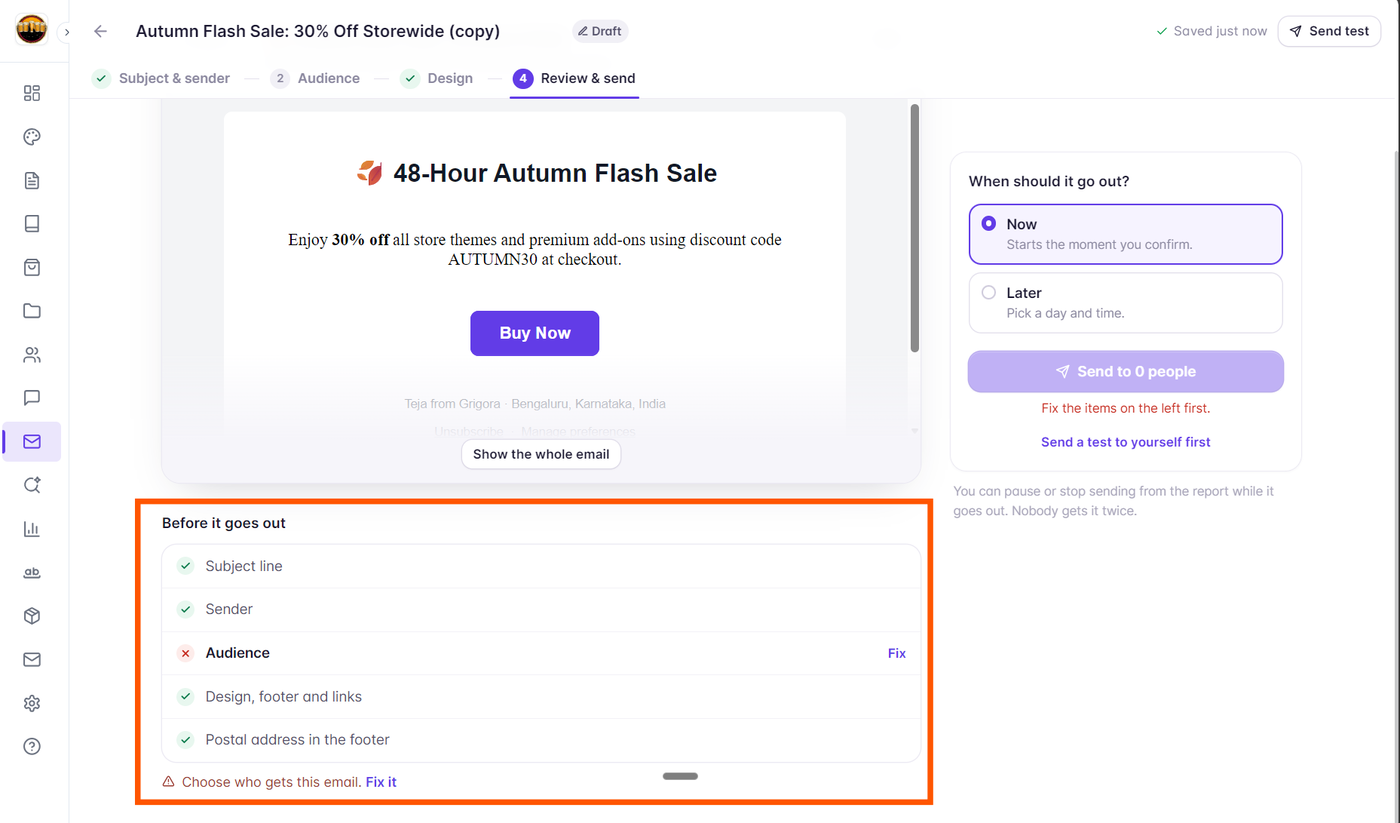
Before any campaign can be sent or scheduled, you must reach Step 4 (Review & send) in the Campaign Editor. Grigora performs an automated pre-flight readiness audit across five criteria:
Subject Line & Preview: Confirms a subject line is set and preview text is configured.
Sender Details: Verifies that a valid sender name, authenticated from email, and physical postal address are present.
Audience: Verifies that at least one subscriber list, tag, or segment is included.
Content Blocks: Ensures your email contains content blocks and is not empty.
Link Health: Confirms there are no broken URLs or empty CTA buttons.
All items must display a green checkmark before the scheduling controls become active.
Scheduling for a Future Date and Time
In the When should it go out? panel on the right side of the screen:
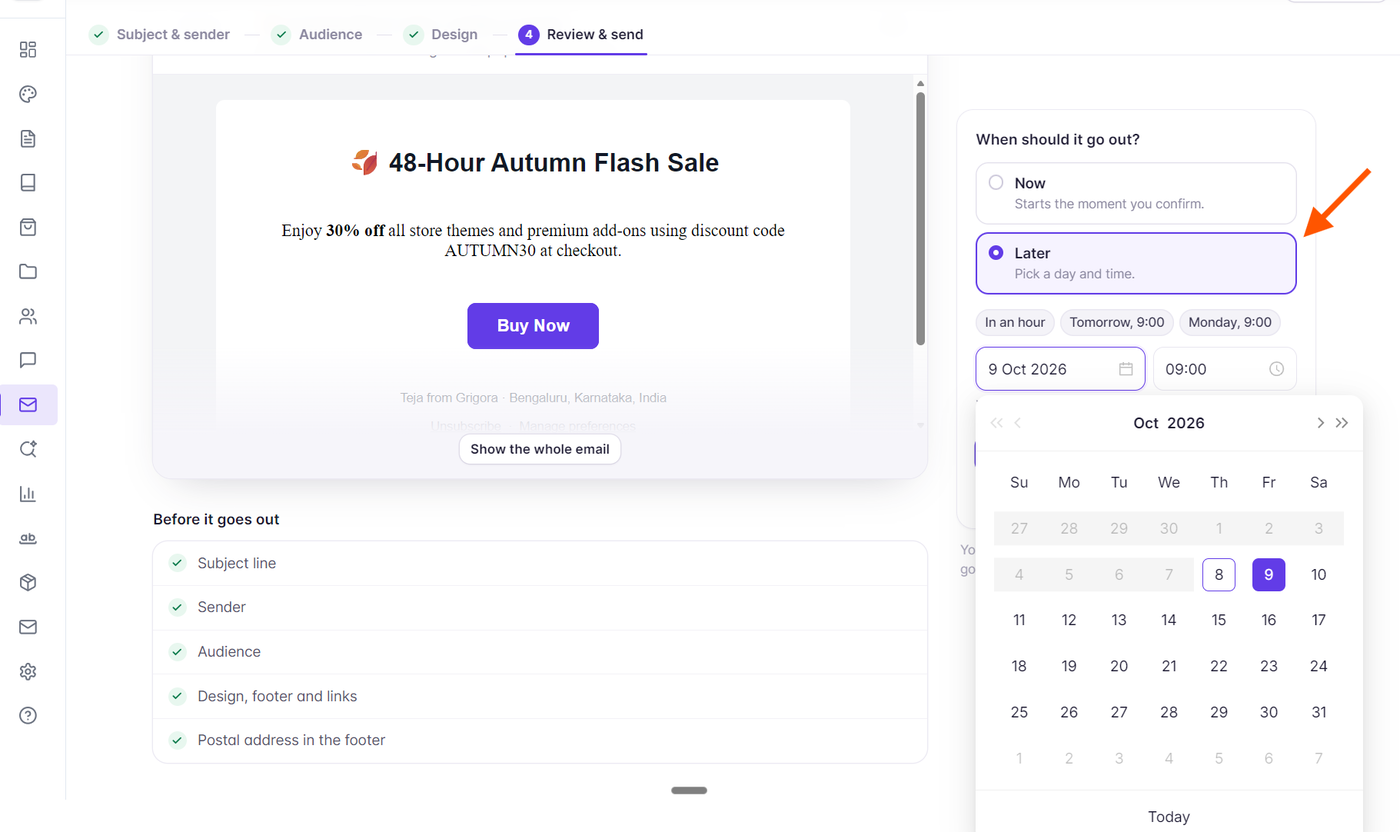
Select the Later radio option ("Pick a day and time").
Use the quick schedule presets for rapid timing:
In an hour: Automatically schedules dispatch 60 minutes from the current time.
Tomorrow, 9:00: Sets dispatch for 9:00 AM the following morning.
Monday, 9:00: Targets 9:00 AM next Monday for standard weekly kickoffs.
Or use the interactive Date Picker and Time Picker controls to select an exact date on the calendar and specific dispatch hour/minute.
Review the displayed local timezone label (e.g., "Times shown in your local timezone GMT+05:30").
Click Schedule campaign to confirm.
Managing Scheduled Campaigns
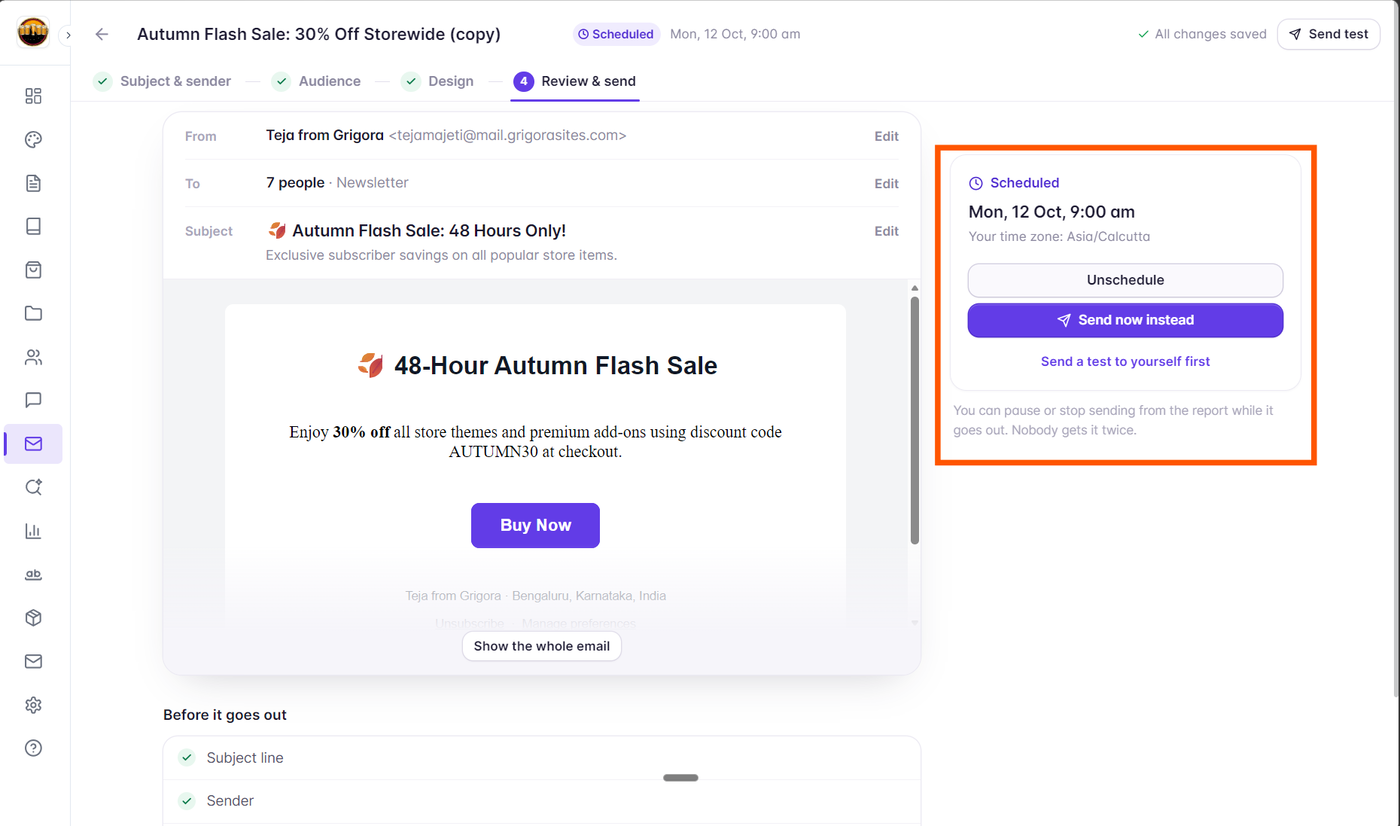
Once scheduled, the campaign enters the Scheduled status and appears in the Scheduled & sending tab on your Campaigns list:
Reviewing Schedule Details: Open the campaign at any time to see its upcoming dispatch date and countdown.
Unscheduling: Need to make last-minute edits? Open the campaign, go to Step 4, and click Unschedule. The campaign reverts immediately to
Draftstatus, allowing you to edit content or re-target your audience.Send Now Instead: If you decide you want to send immediately without waiting for the scheduled time, click Send now instead to initiate instant dispatch.