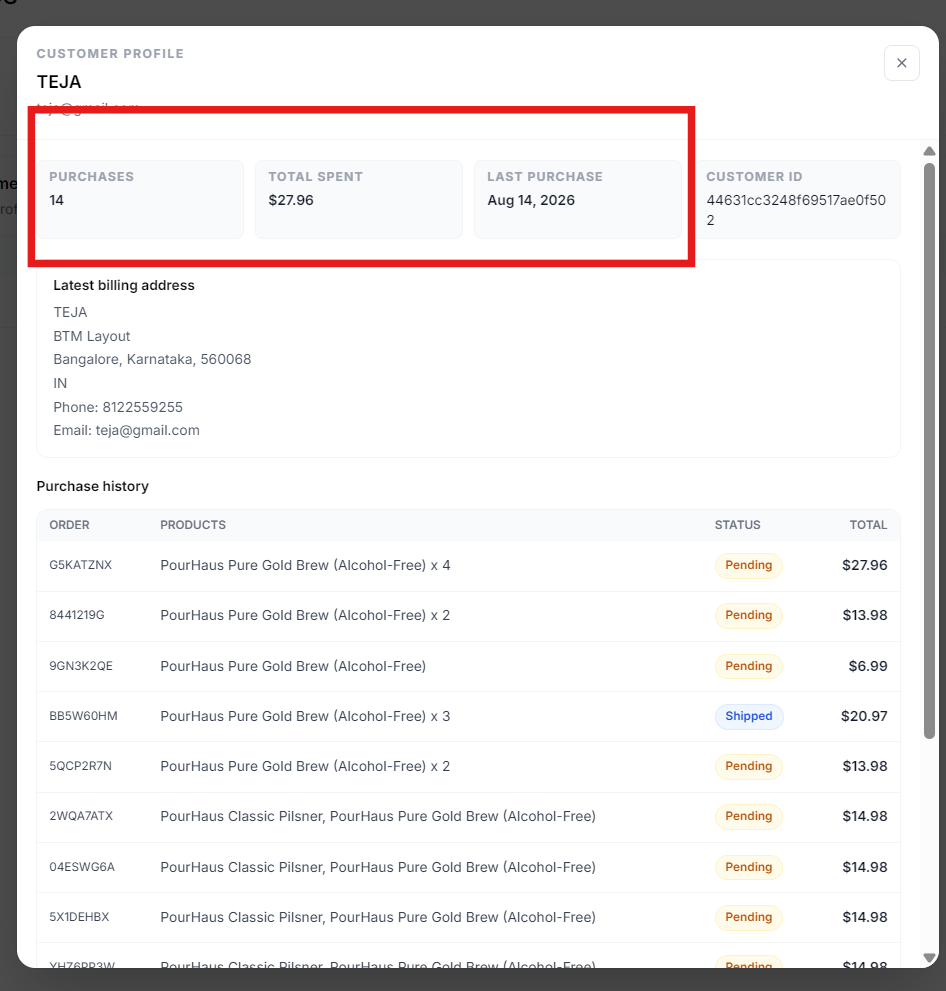
The Customers section in Grigora Commerce provides a centralized view of customers who have placed orders through your store. You can view the available customer list and open an individual customer profile to review their purchase history, spending information, latest purchase, and other customer details.
Open the Customers Section
Step 1: Open Customers
From your Grigora dashboard, expand Commerce in the sidebar and select Customers.
The Customers section displays the customers associated with your Commerce store.
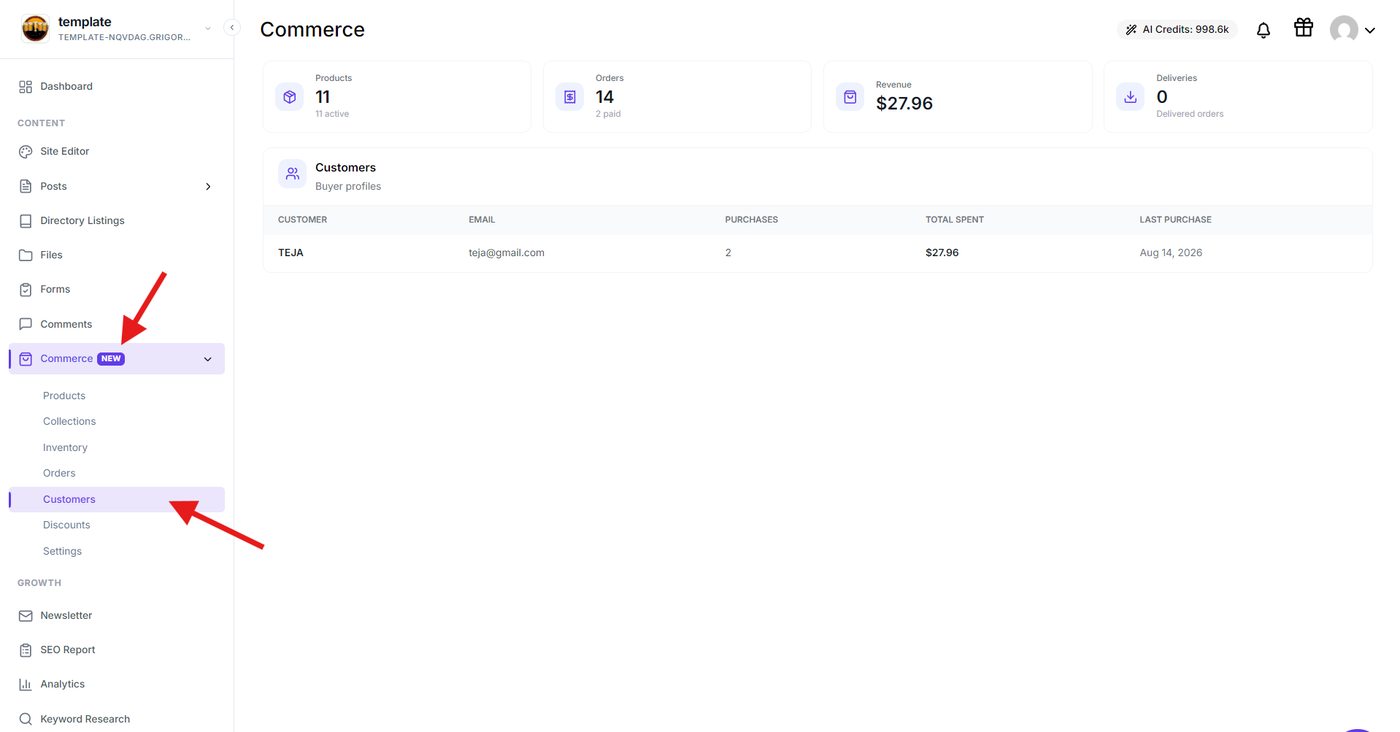
View Customer Profiles
Step 2: Open a customer profile
Select a customer from the list to open their Customer Profile.
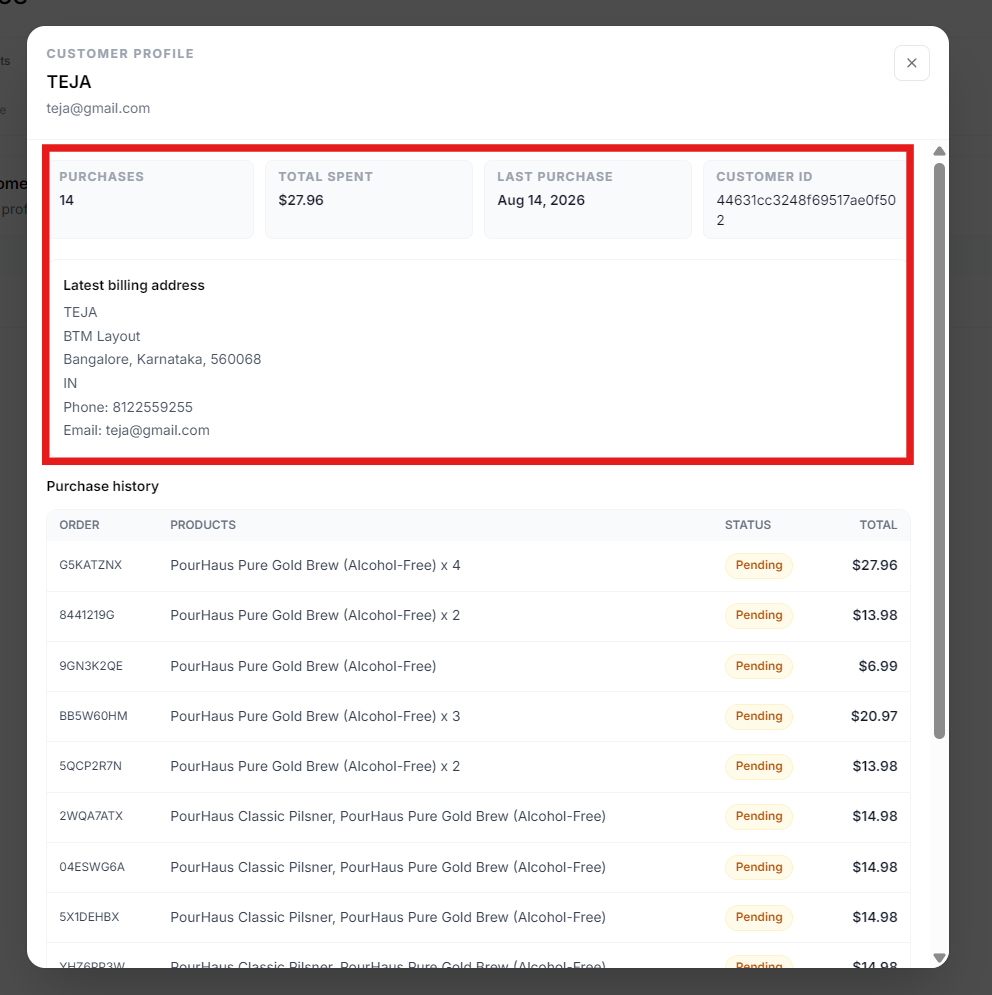
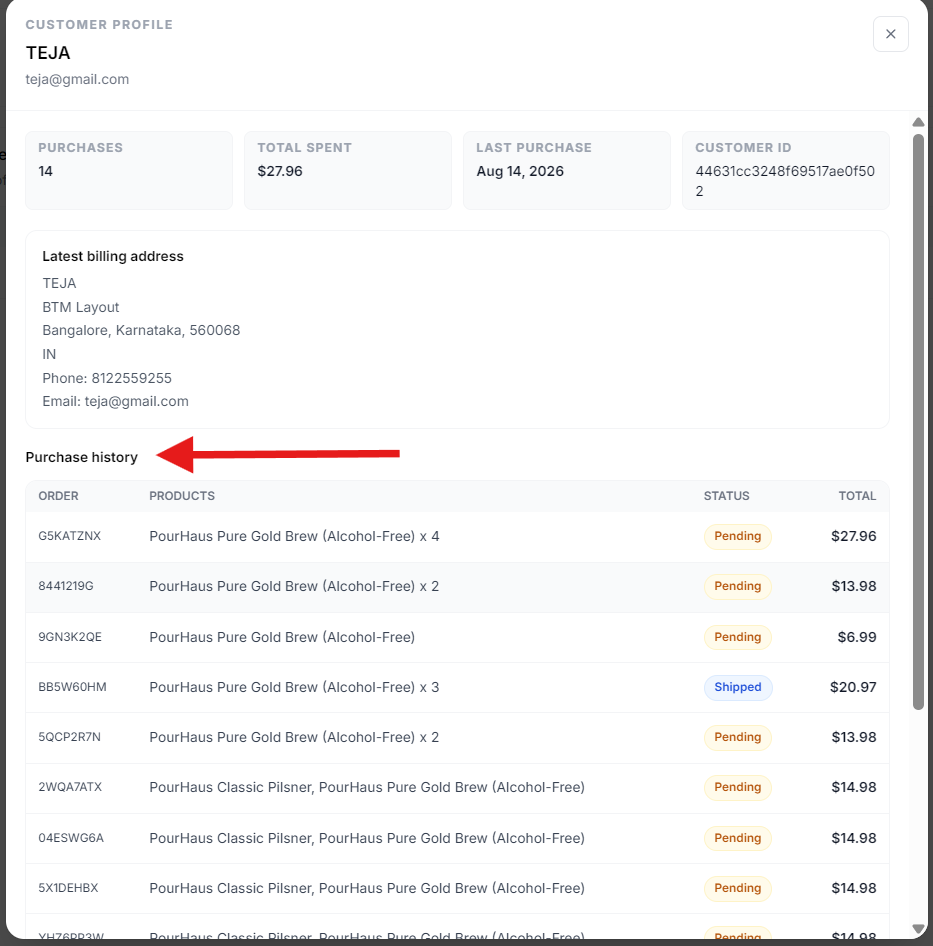
The profile provides an overview of the customer's activity, including their total purchases, total amount spent, date of their last purchase, and unique customer ID.
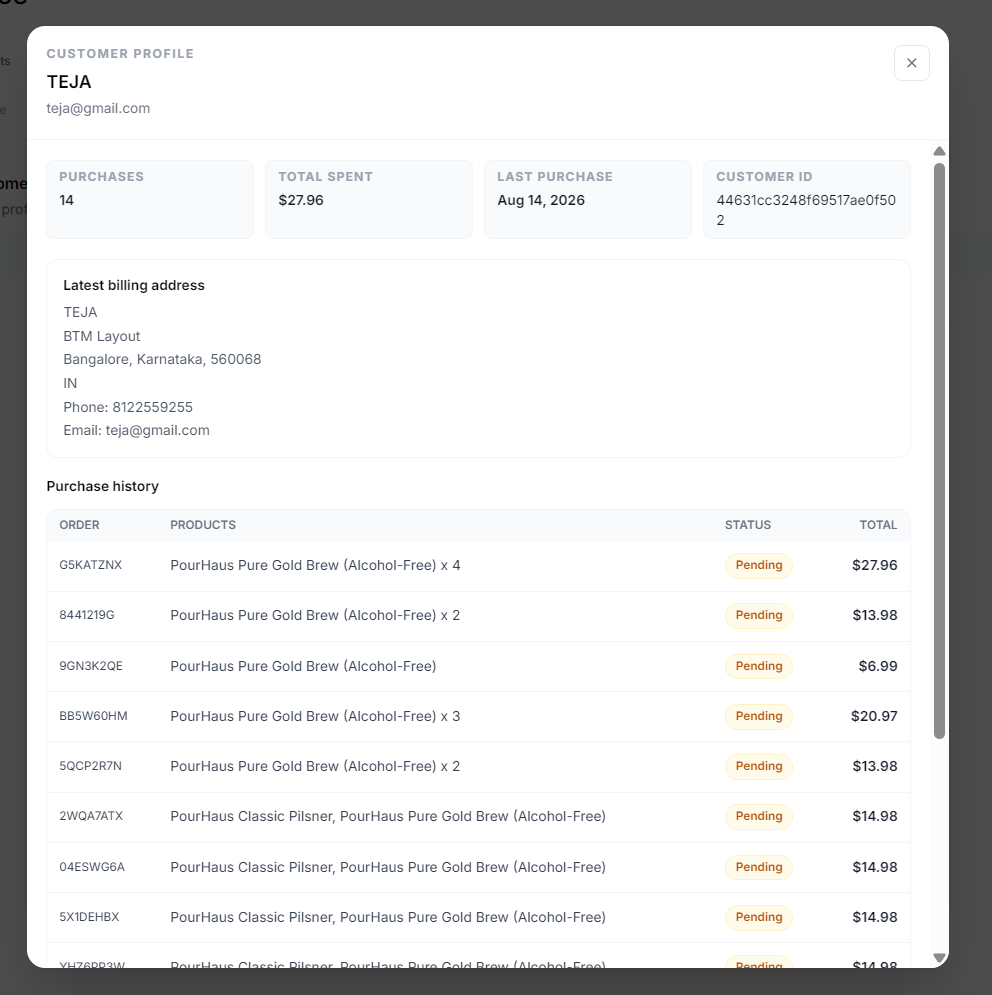
Review Customer Details
Step 3: Review customer information
The customer profile displays the customer's basic information along with their latest billing address.
Review the available details, including the customer's name, email address, phone number, and billing address.
View Purchase History
Step 4: Review purchase history
Scroll to the Purchase history section to view the customer's previous orders.
Each entry displays the order number, products purchased, order status, and total amount. Use this information to review the customer's order history and understand their previous purchases.
Review Customer Activity
Step 5: View customer purchase summary
At the top of the customer profile, review the available purchase summary:
Purchases – Shows the number of purchases associated with the customer.
Total spent – Shows the total amount spent by the customer.
Last purchase – Shows the date of the customer's most recent purchase.
Customer ID – Displays the unique identifier assigned to the customer.
This provides a quick overview of the customer's activity without having to review each order individually.