

The Call-to-Action (CTA) button is the focal point of every marketing email. Whether you want subscribers to read a new blog post, explore a seasonal sale, or register for an upcoming webinar, a clearly visible, attractive button drives engagement.
This guide explains how to add and style CTA buttons in Grigora, configure click tracking, and avoid common link pitfalls.
Adding a Button Block
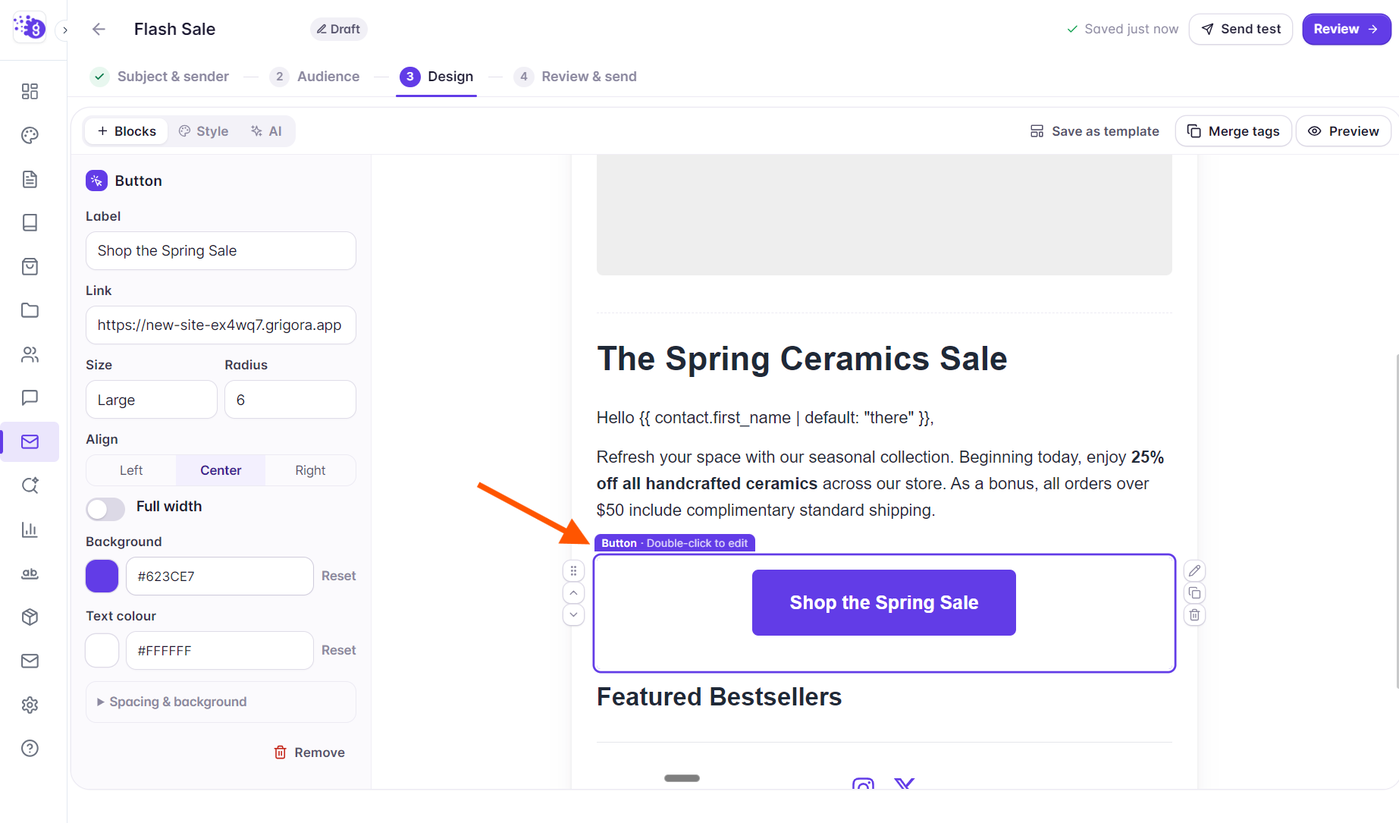
In the Grigora visual composer, drag the Button block from the palette onto your canvas.
You can position the button standalone in the main body or nest it inside a multi-column container next to product imagery.
Double-click the button on the canvas to edit its label text directly (e.g., "Claim Your 20% Discount", "Read Full Story").
Customizing Button Styling in the Inspector
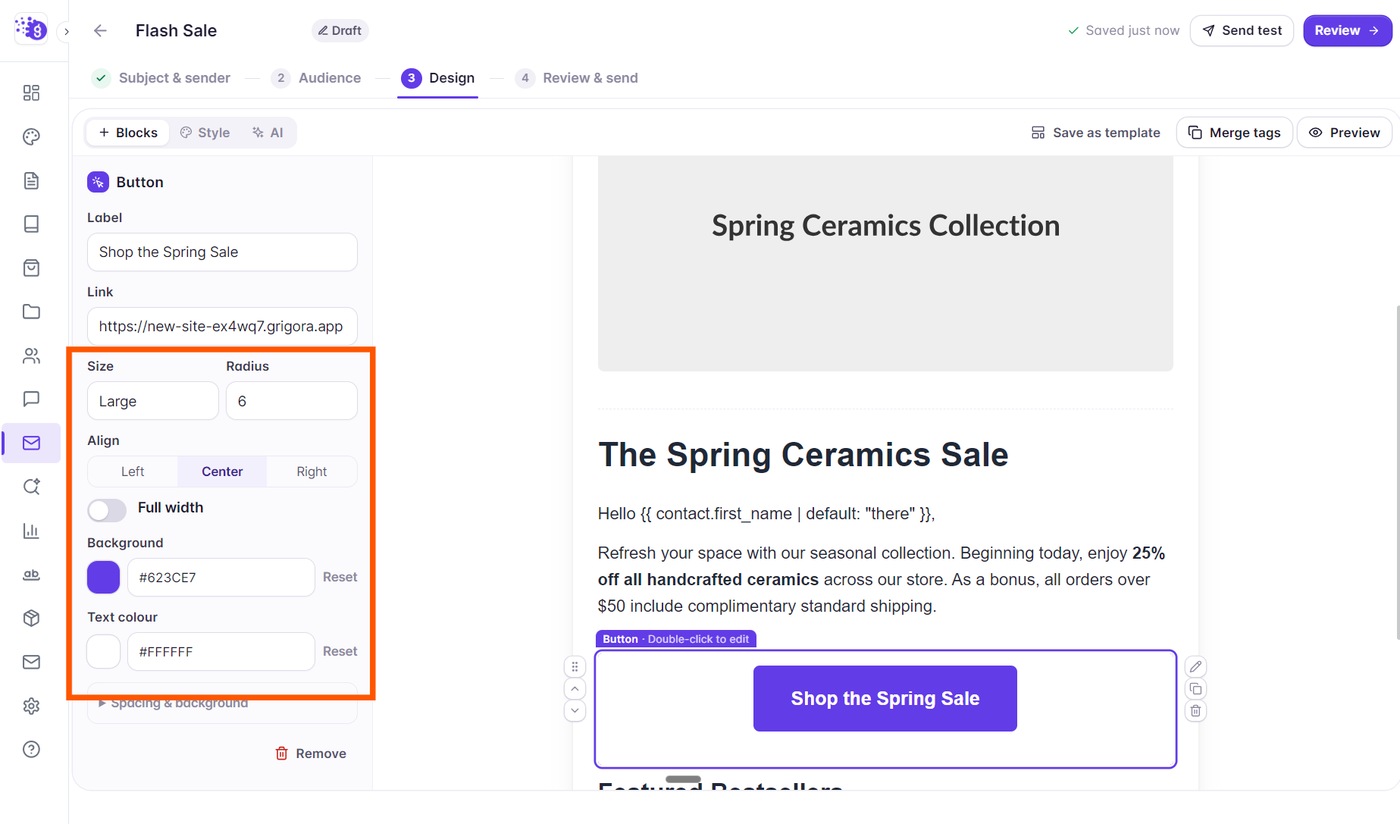
Select the button on the canvas to open its comprehensive styling controls in the left side panel:
Button Style: Choose between Solid (filled background) or Outline (transparent background with colored border).
Colors: Set the background color and text color using the color picker or brand presets. Ensure high contrast so the text remains easy to read.
Border Radius: Choose from Square (0px), Rounded (8px), or Pill (full radius) to match your visual branding.
Padding & Size: Select compact, normal, or large vertical and horizontal padding.
Alignment: Align the button to the Left, Center, or Right, or enable Full Width to span the entire column.
Configuring Destination URLs and Link Validation
In the left side panel, enter the destination URL in the Link field (e.g., https://yourdomain.com/shop):
Ensure the URL begins with a valid protocol (
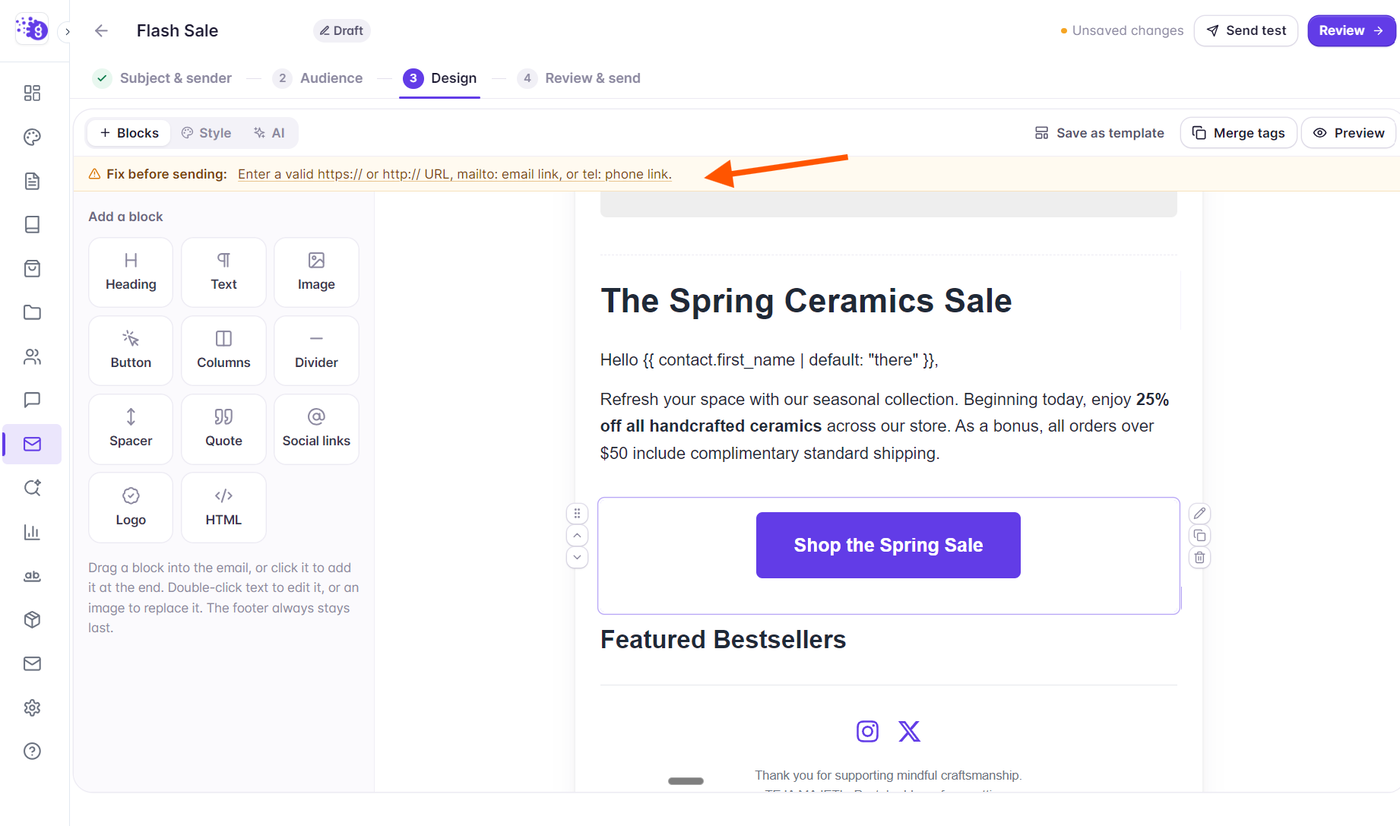
https://).Grigora includes real-time link validation. If a button URL is empty, malformed, or missing, an amber banner (Fix before sending:) appears directly below the top toolbar.
Click the problem link in the banner to jump directly to the affected button block and correct the URL before sending.
Testing and Click Tracking
Inbox Test Send: Use the Send test button in the composer header to send a test email to your inbox and confirm that clicking the button opens the intended landing page.
Analytics: Once the campaign is sent, Grigora automatically tracks all unique and total clicks on your buttons, displaying them on your Campaign Report click map.