

Personalized email marketing starts with precision targeting. In Grigora, the Segment Builder allows you to construct sophisticated dynamic audience queries using multi-condition rules, boolean Match all (AND) and Match any (OR) logic, and nested condition groups.
This guide walks you through building multi-condition segments step-by-step, choosing the right operators, nesting condition groups, and verifying your audience metrics in real time.
Accessing the Segment Builder
In your Grigora project dashboard, click on Newsletter.
In the top sub-navigation bar, click on Segments.
Click the + New segment button in the top-right corner.
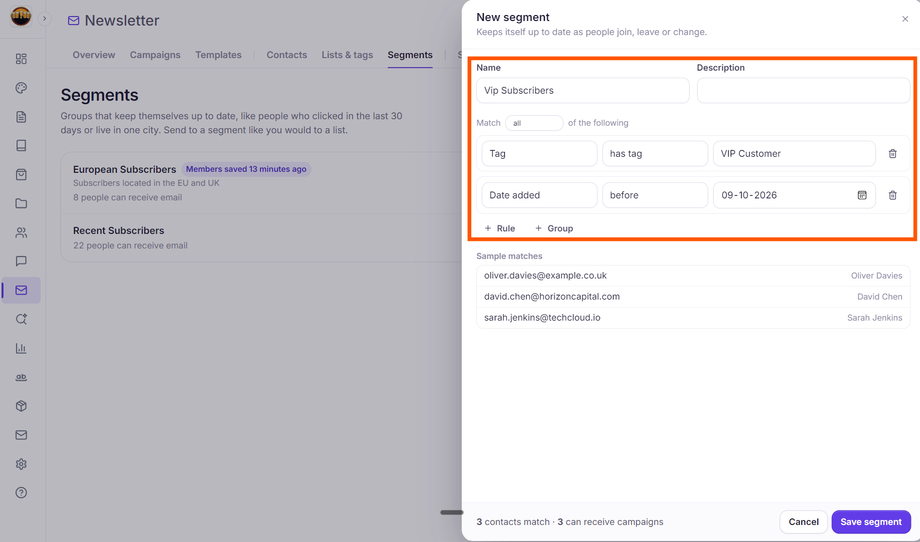
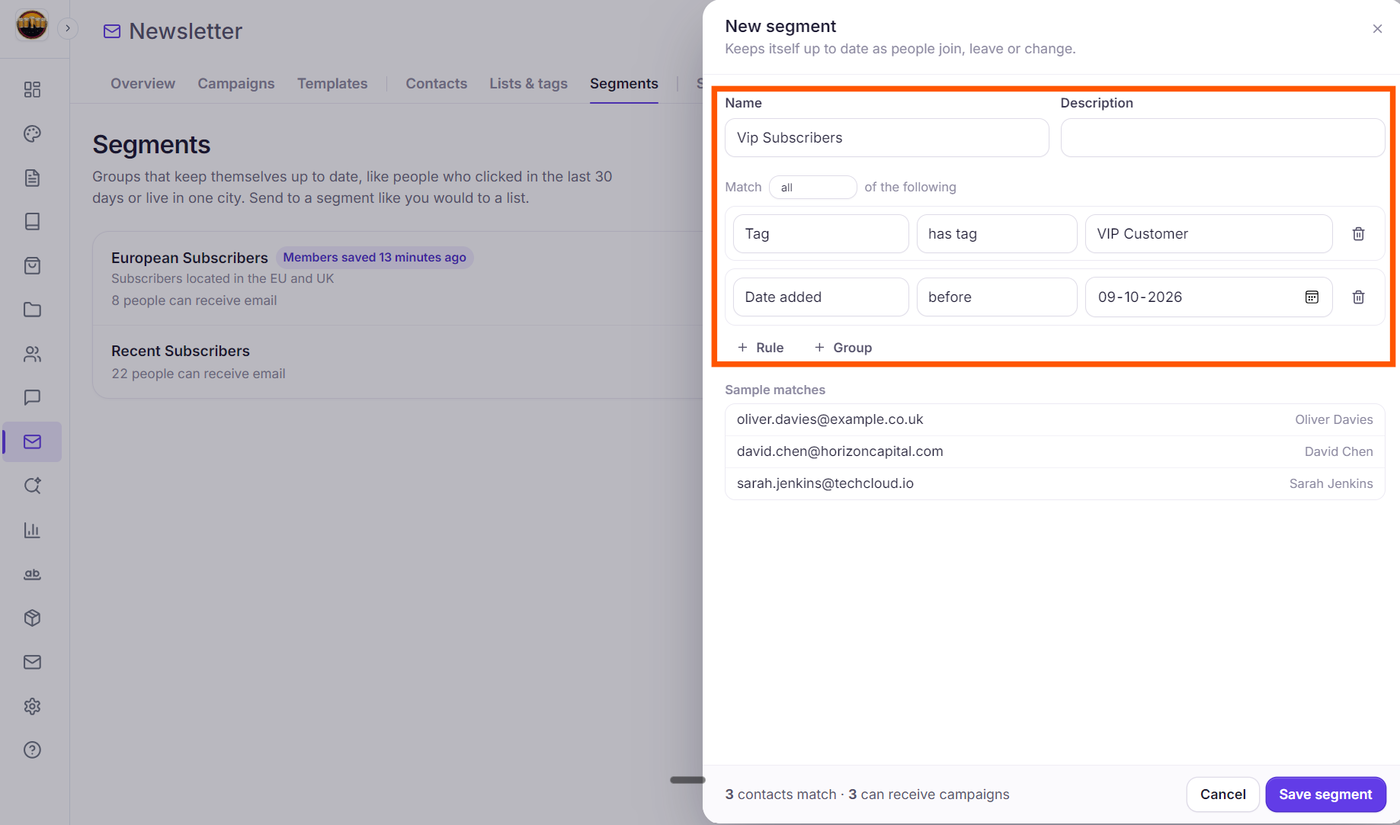
The New segment drawer opens, prompting you for a Name (required) and an optional Description.
Understanding Condition Logic: "Match All" vs. "Match Any"
Directly below the name and description fields, Grigora displays the rule matching selector:
Match [ all / any ] of the following
Match all (AND logic): Every condition within this group must evaluate to true for a subscriber to be included.
Example: List subscribed to Newsletter AND Date added in the last … days 30.Match any (OR logic): A subscriber is included if at least one rule in the group is satisfied.
Example: Tag has tag vip OR Tag has tag partner.
How to Construct a Rule Row
Each rule row consists of three intuitive dropdowns or inputs: Field, Operator, and Value.
Select the Field:
Contact: Email, First name, Last name, Phone, Source, Timezone, Locale, Status, Date added, Last engaged.
Custom fields: Any custom text, number, date, boolean, or dropdown fields you created in your project.
Membership: List, Tag, or Segment.
Engagement: Opened campaign, Clicked campaign, Received campaign, Opened any email, Clicked any email.
Choose the Operator:
Text Fields: is, is not, contains, does not contain, starts with, ends with, is set, is empty.
Date Fields (e.g., Date added, Last engaged): in the last … days, not in the last … days, before, after, is set, is empty.
Number Fields:
>,≥,<,≤,=,≠, is set, is empty.Membership Fields: subscribed to, not subscribed to, pending confirmation on, unsubscribed from (for Lists); has tag, does not have tag (for Tags); is in segment, is not in segment (for Segments).
Boolean Fields: is yes, is no, is empty.
Campaign Engagement: did, did not.
Provide the Value: Type the value, select from predefined dropdown lists, or pick a date on the calendar depending on the chosen operator.
Building Advanced Multi-Group Segments (+ Group)
You can create complex multi-tiered logic by combining + Rule and + Group:
Click + Rule to add another condition at the same level.
Click + Group to nest a subordinate rule block with its own independent Match all or Match any setting.
Example: Active Recent Joiners OR High-Value VIPs
Match all of the following├── Status is 'subscribed'└── [Nested Group: Match any of the following] ├── Date added in the last … days 14 └── loyalty_points > 500This ensures that only active subscribers are considered, and they must either be recently added or possess a high loyalty score.
Live Preview and Segment Metrics
Grigora calculates your audience criteria dynamically as you configure your rules:
Footer Metric: At the bottom-left of the drawer, you will see {N} contacts match · {N} can receive campaigns (or 1 contact matches · 1 can receive campaigns). While calculating, it displays Counting….
Sample Matches: Displays sample matching subscribers directly below your rules:
Deliverable contacts: Rendered in dark text with their email address and name.
Non-sendable contacts: Rendered in muted gray text with a slate badge pill indicating why campaigns skip them (e.g., Not confirmed yet, Unsubscribed, Bounced, Marked as spam, or On the do-not-send list).
Saving and Using Your Segment
Click the solid purple Save segment button in the bottom-right corner.
Your segment appears immediately on the Segments page with the metric {N} people can receive email and a Members saved status badge.
To send an email to this group, click Send a campaign on the segment card, or select it under the Segments column in Step 2: Audience of the Campaign Builder.
Next Steps
Understanding "Contacts Match" vs. "Sendable Contacts" in Grigora Segments
How to Segment Subscribers Based on Activity, Recency, and Custom Fields
How to Target the Right Audience: Including and Excluding Lists, Tags, and Segments
How to Create an Email Campaign in Grigora: The Complete 4-Step Walkthrough