

Maintaining a high sender reputation and strong inbox deliverability requires protecting your domain from emailing invalid mailboxes, spam complainants, or unsubscribed contacts. In Grigora, the Suppression list serves as an automated firewall, ensuring that addresses marked as do-not-send are blocked across all campaigns.
This guide explains where to find the Suppression list in your settings, how to interpret suppression reasons and diagnostic notes, how to manually suppress addresses, and how to unblock contacts when needed.
Where to Find the Suppression List
The suppression list is located under your project's newsletter settings:
In your Grigora dashboard, click Newsletter (the envelope icon) in the left navigation sidebar.
Select Settings from the top navigation tabs.
Scroll down past Postal address, Default sending connection, Consent text, and Custom fields to find the Suppression list card.
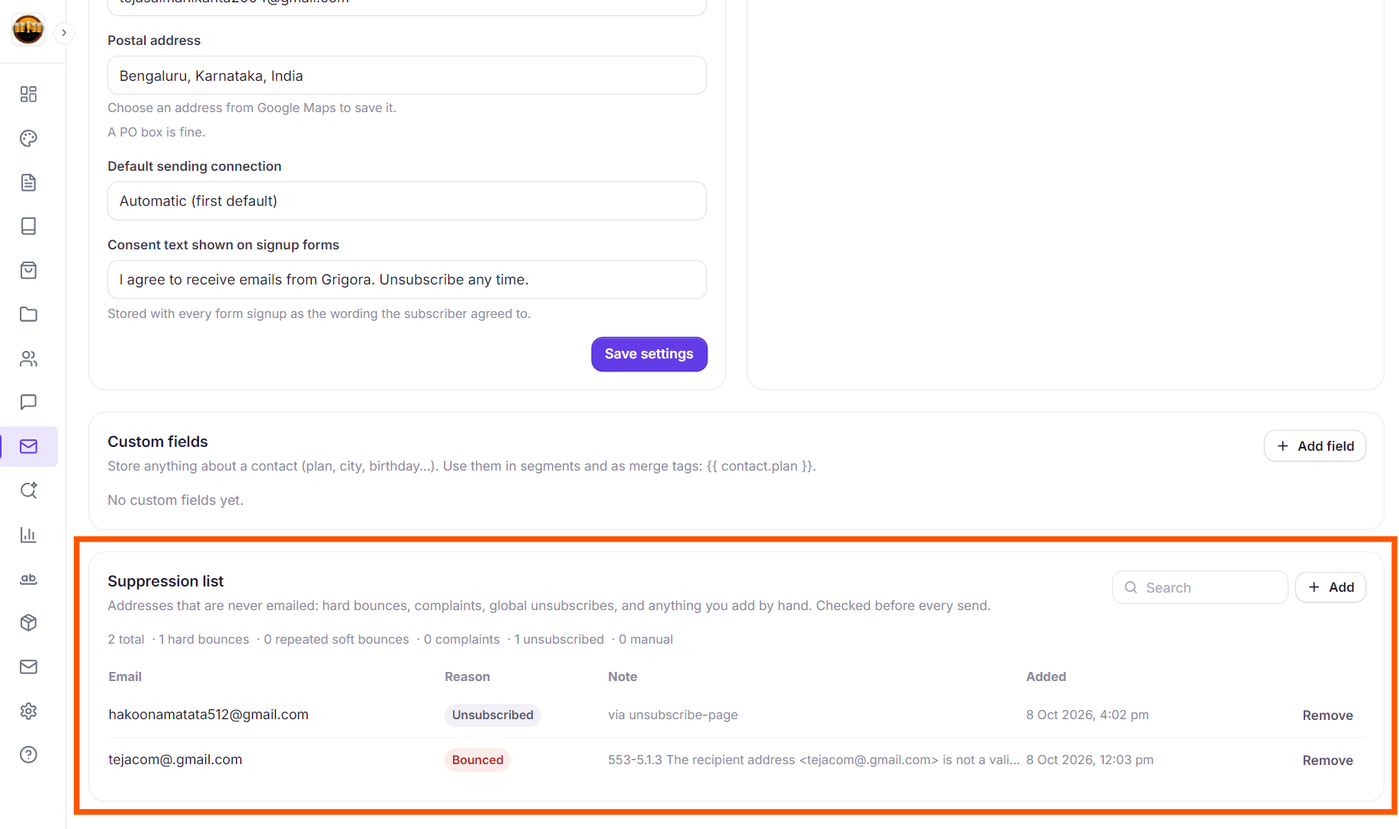
As indicated in the interface: "Addresses that are never emailed: hard bounces, complaints, global unsubscribes, and anything you add by hand. Checked before every send."
Understanding the Suppression Counts Summary
Directly below the card description, Grigora displays a live summary breakdown of all suppressed contacts across five distinct categories:
Total: The grand total of all currently suppressed email addresses.
Hard bounces: Addresses rejected by receiving mail servers as permanently non-existent or invalid.
Repeated soft bounces: Addresses that experienced transient delivery failures across multiple send attempts.
Complaints: Recipients who flagged an email as spam in their mailbox provider (Gmail, Yahoo, Outlook).
Unsubscribed: Contacts who opted out globally (such as via one-click unsubscribe links).
Manual: Addresses manually added to the suppression list by team administrators.
The Suppressions Table: Reasons and Diagnostic Notes
The suppression table lists every blocked address along with clear diagnostic context:
Email: The suppressed recipient's email address.
Reason: A color-coded pill badge indicating why the address was blocked:
Bounced (Red): Permanent hard bounce (e.g., typos in domain or invalid mailbox).
Kept bouncing (Slate): Repeated soft bounces that failed consecutively.
Reported spam (Red): Spam complaints received from mailbox providers.
Unsubscribed (Slate): Global opt-outs.
Added by hand (Purple): Manually suppressed addresses.
Erased (Slate): Anonymized contacts where recipient data has been erased.
Note: Contains the exact diagnostic explanation or context. For example, for an unsubscribed user it shows
via one-click, while for a bounced contact it shows the exact mail server error (such as553-5.1.3 The recipient address is not valid).Added: The exact date and timestamp when the email was placed on the suppression list.
Remove: A direct text button on the far right of each row to unblock the address.
Searching Suppressed Contacts
To quickly find a specific contact:
In the top-right corner of the Suppression list card, click the Search bar.
Type the recipient's email address or domain.
The table filters in real time. If no matching entries are found, Grigora displays "Nothing suppressed matching that search."
How to Manually Suppress Addresses
If a customer contacts you outside of your newsletter requesting never to be emailed, or if you need to proactively block specific addresses:
In the Suppression list card header, click the + Add button.
The Suppress addresses modal dialog will open.
In the text area, enter one or more email addresses. You can enter them one per line, or separate them with commas or semicolons.
Click the Suppress button.
Grigora immediately adds the addresses with the badge Added by hand. Any matching contacts already in your database are automatically unsubscribed from all lists and campaigns.
How to Remove an Address from the Suppression List
If a contact was suppressed due to a temporary server configuration error or if an unsubscribed customer explicitly requests to rejoin your list:
Locate the contact in the suppression list using the search bar.
Click the Remove button on the far right of their row.
The address is instantly removed from the suppression list and the table refreshes.
Deliverability Best Practice: Never remove addresses flagged as Reported spam. Mailbox providers like Gmail and Yahoo monitor spam complaint rates strictly. Sending again to someone who reported your emails as spam can harm your domain reputation and cause your future campaigns to land in junk folders.
How Grigora Enforces Suppressions Automatically
You do not need to manually check the suppression list before sending a campaign. Grigora automatically checks the suppression list before every dispatch:
During Step 2: Audience, suppressed contacts are automatically deducted from your recipient calculations.
During Step 4: Review & send, Grigora verifies that zero suppressed addresses receive dispatches.
If an active contact appears on the suppression list, Grigora skips that recipient silently during the send run and records them as skipped in the Campaign Report.