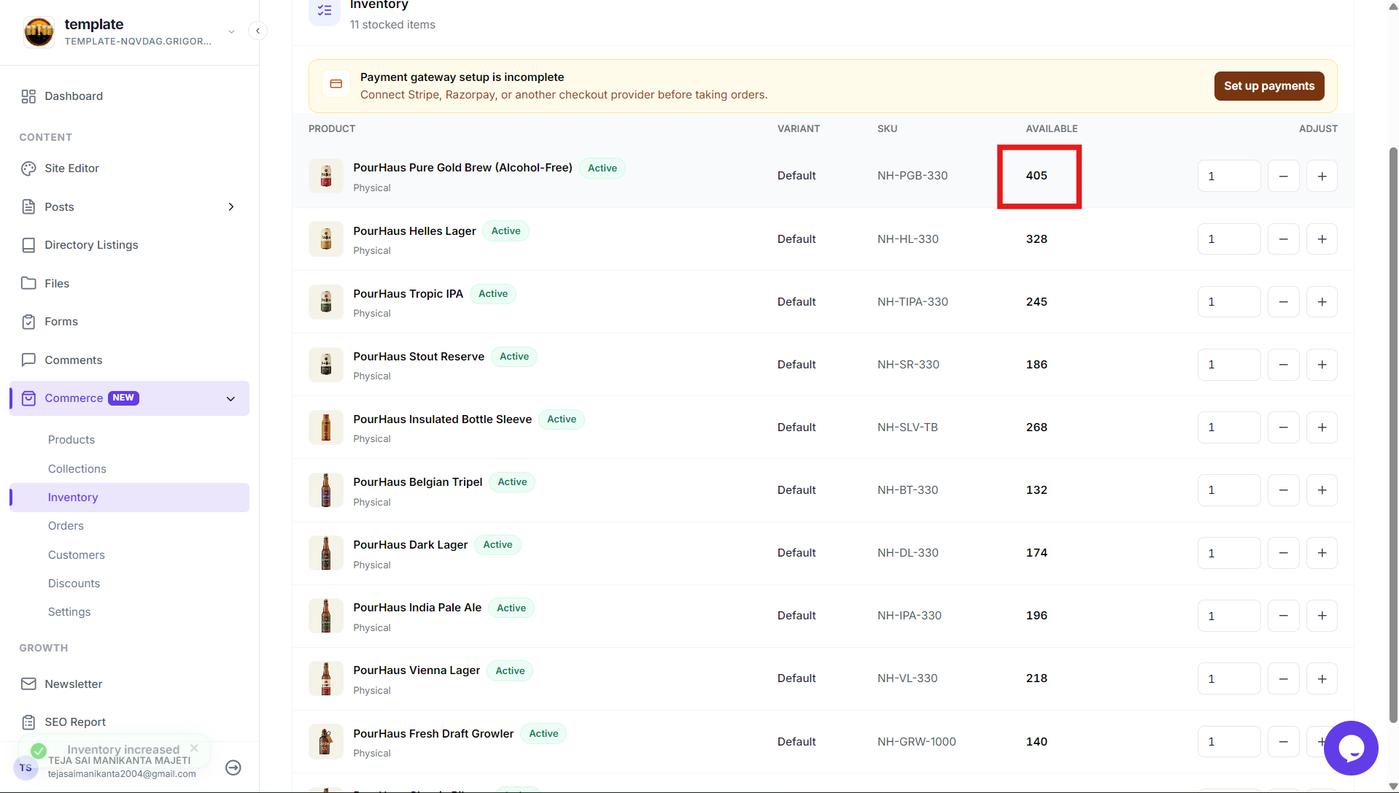
The Inventory section in Grigora Commerce provides a centralized view of the products that have stock available. Instead of opening each product individually, you can review inventory for all stocked products from a single list and adjust their quantities directly.
The inventory list displays important product information such as the product name, variant, SKU, and available stock. You can increase or decrease the stock quantity using the adjustment controls and confirm the change before it is applied.
Open the Inventory Section
Step 1: Open Inventory
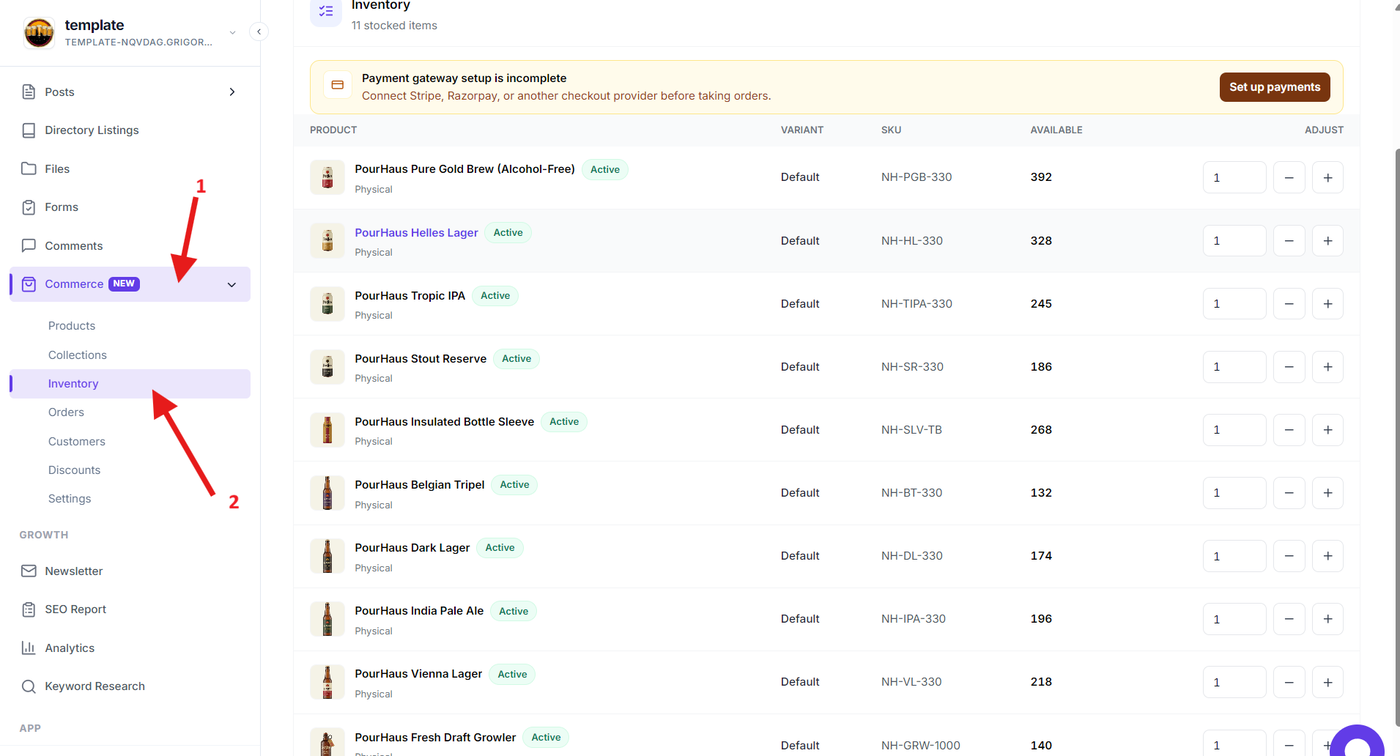
From the Grigora dashboard, expand Commerce from the sidebar and select Inventory.
The Inventory page displays the products that currently have inventory information available. Each row represents a product and its associated variant, along with its SKU and current available quantity.
Review Product Inventory
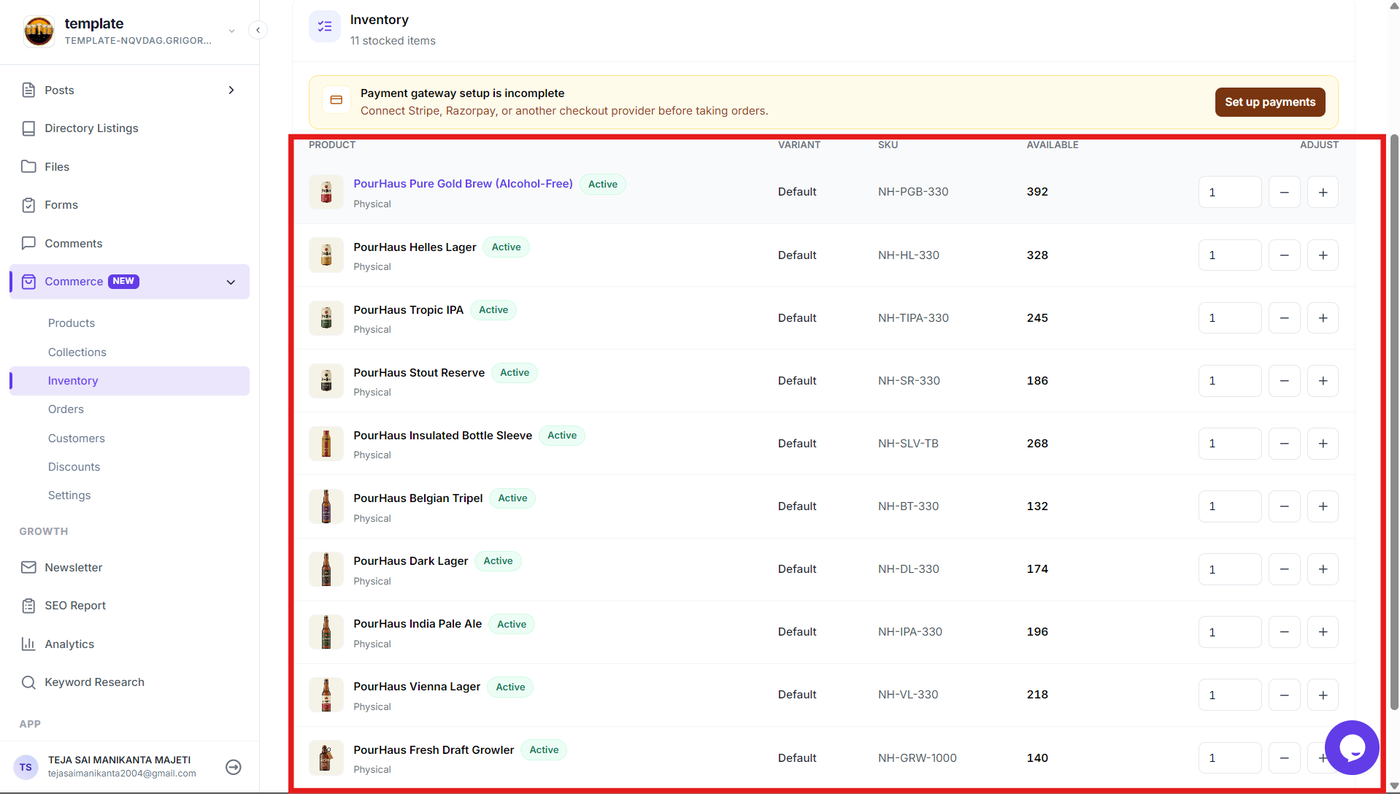
The inventory table provides a centralized overview of your stocked products. Use the information in each row to identify the product and review its current stock level.
The table includes:
Product – Displays the product name and its current status.
Variant – Shows the variant associated with the inventory item. Products without variants use the default variant.
SKU – Displays the product or variant SKU for identification.
Available – Shows the current quantity available in stock.
Adjust – Provides controls for changing the available stock quantity.
Review the Available quantity before making an adjustment so that the new stock level is based on the current inventory.
Adjust Product Inventory
Step 2: Enter the inventory adjustment
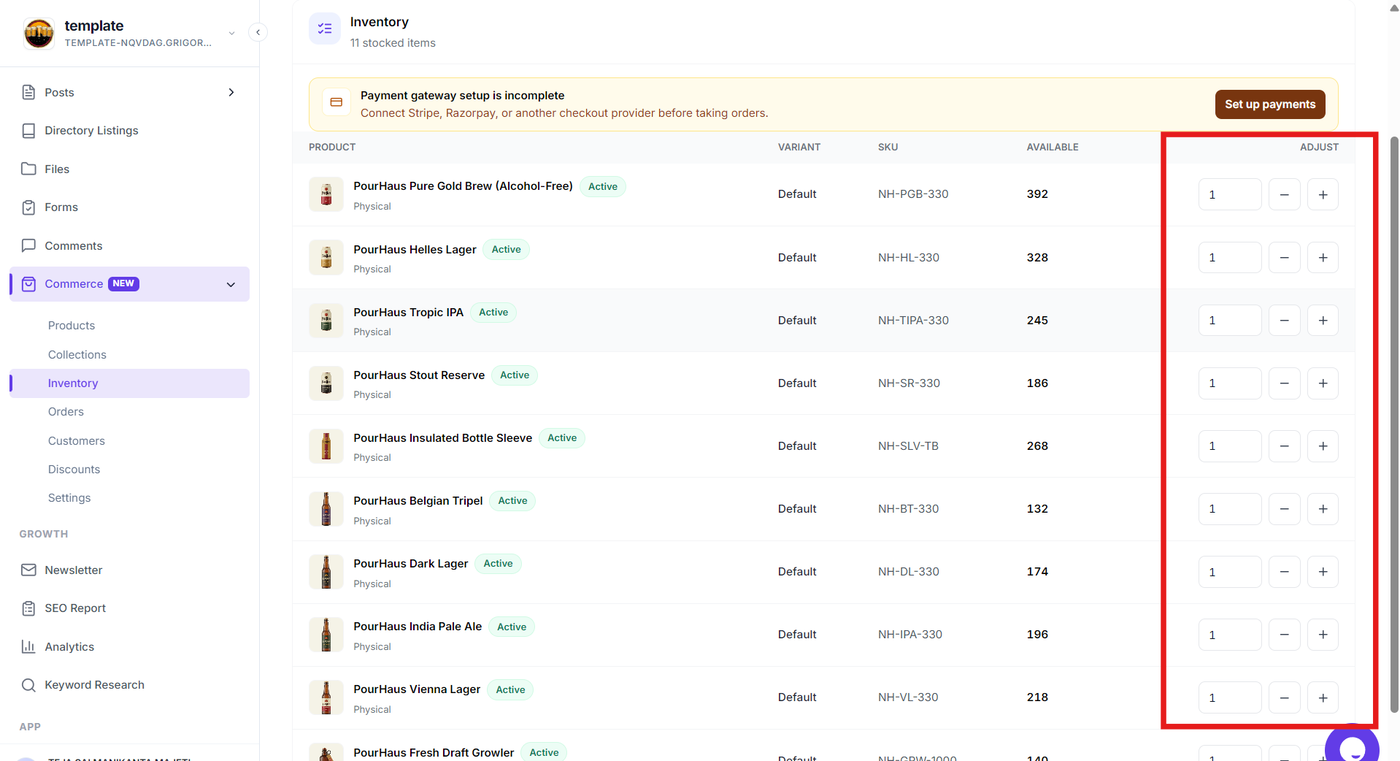
Locate the product whose stock you want to change in the inventory list. In the Adjust column, enter the quantity you want to add or remove from the current stock.
You can use the adjustment field together with the minus (-) and plus (+) controls to change the inventory amount.
For example, if a product currently has 392 units available and you make a -1 adjustment, the resulting stock will be 391 units.
Confirm the Stock Change
Step 3: Review the inventory update
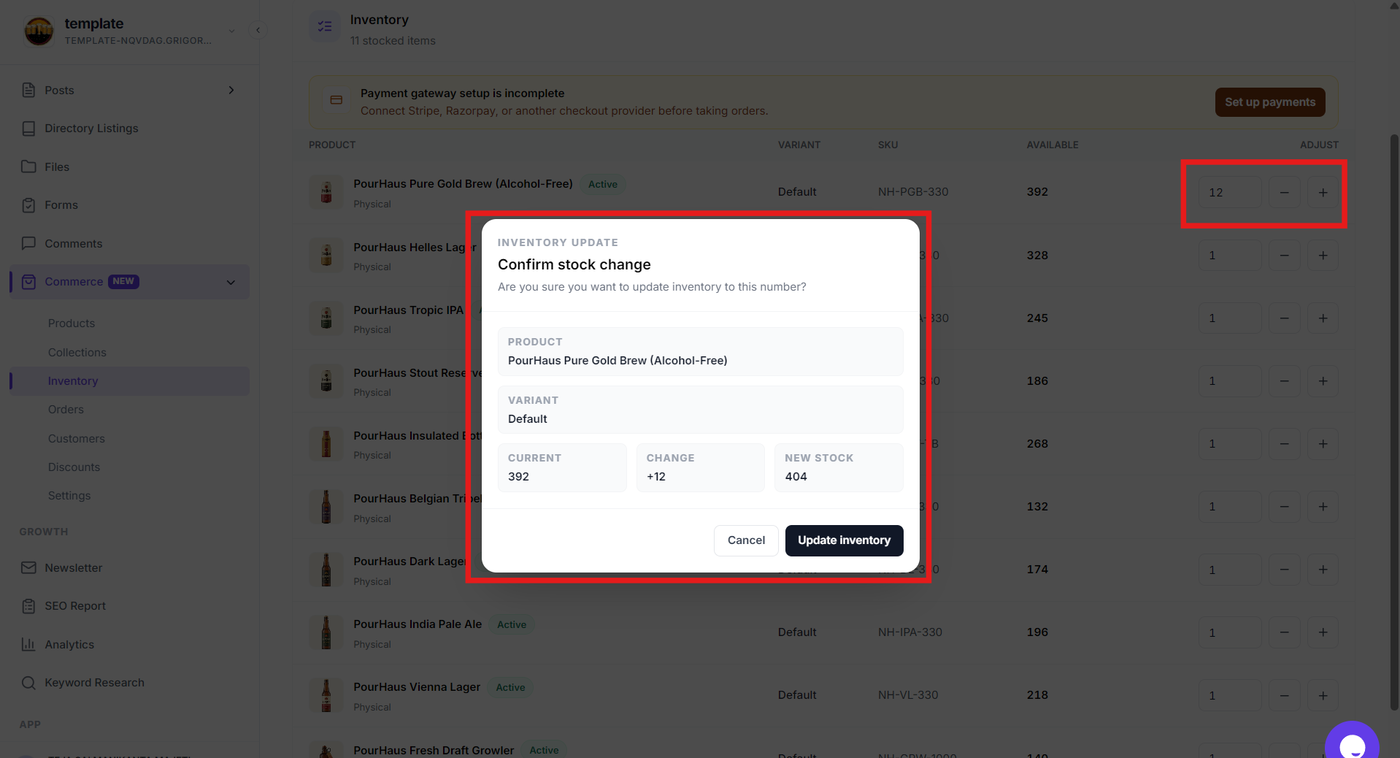
After making an adjustment, Grigora displays an Inventory Update confirmation dialog before applying the change.
The confirmation dialog shows the product and variant being updated along with three important values:
Current – The product's existing stock quantity.
Change – The inventory adjustment being made.
New Stock – The resulting quantity after the adjustment.
Review these values carefully to make sure the change is correct before updating the inventory.
Step 4: Apply the inventory update
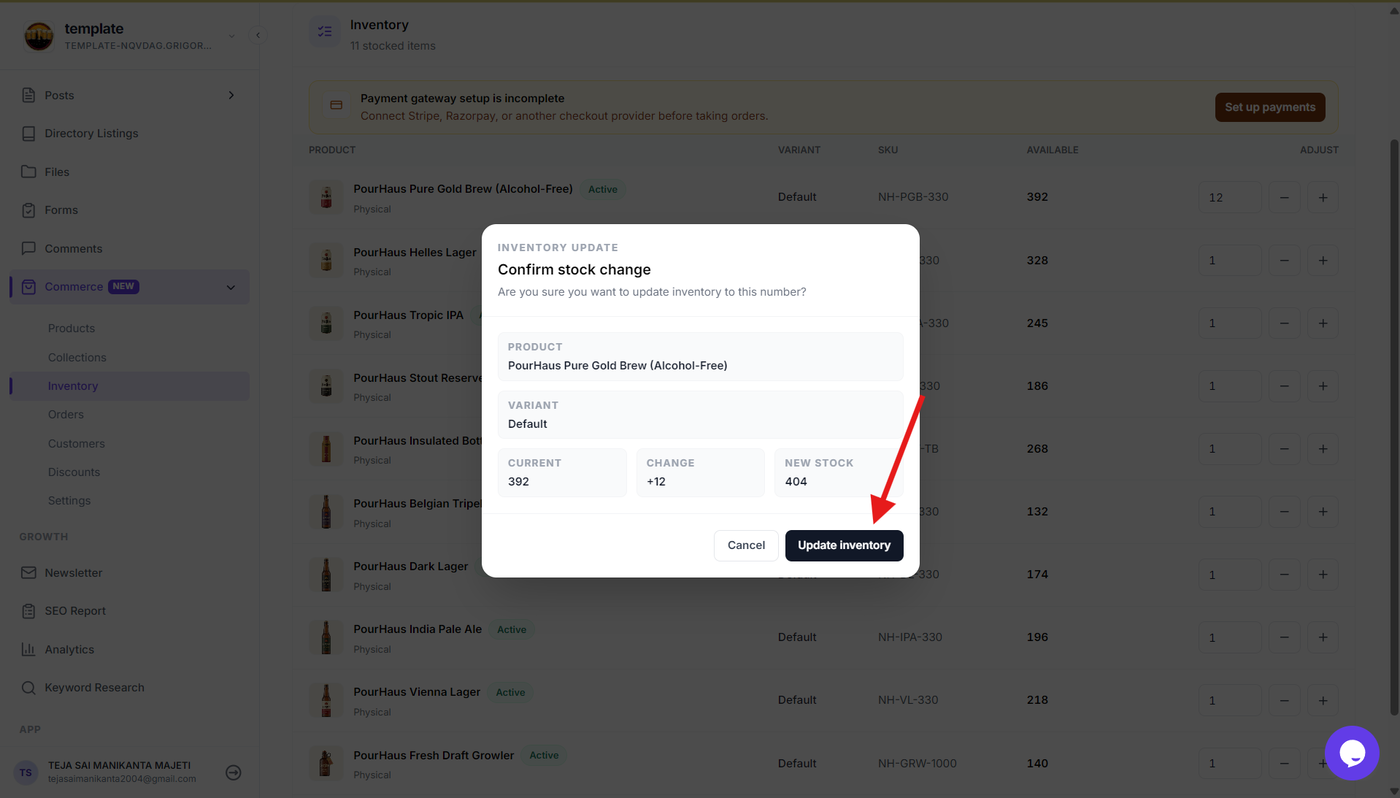
If the displayed values are correct, click Update inventory to apply the stock change.
The inventory quantity is updated using the confirmed adjustment, and the updated quantity is reflected in the inventory list.
If the adjustment is incorrect, click Cancel to close the confirmation dialog without applying the change.
Verify Updated Stock
Step 5: Verify the new inventory quantity
After confirming an inventory update, check the Available column for the product to verify that the stock quantity has been updated correctly.
The displayed quantity should reflect the new stock after the adjustment. Continue reviewing the inventory list to ensure that any other required stock changes have also been applied.
Keeping the inventory quantities accurate helps ensure that your store reflects the actual stock available for purchase.