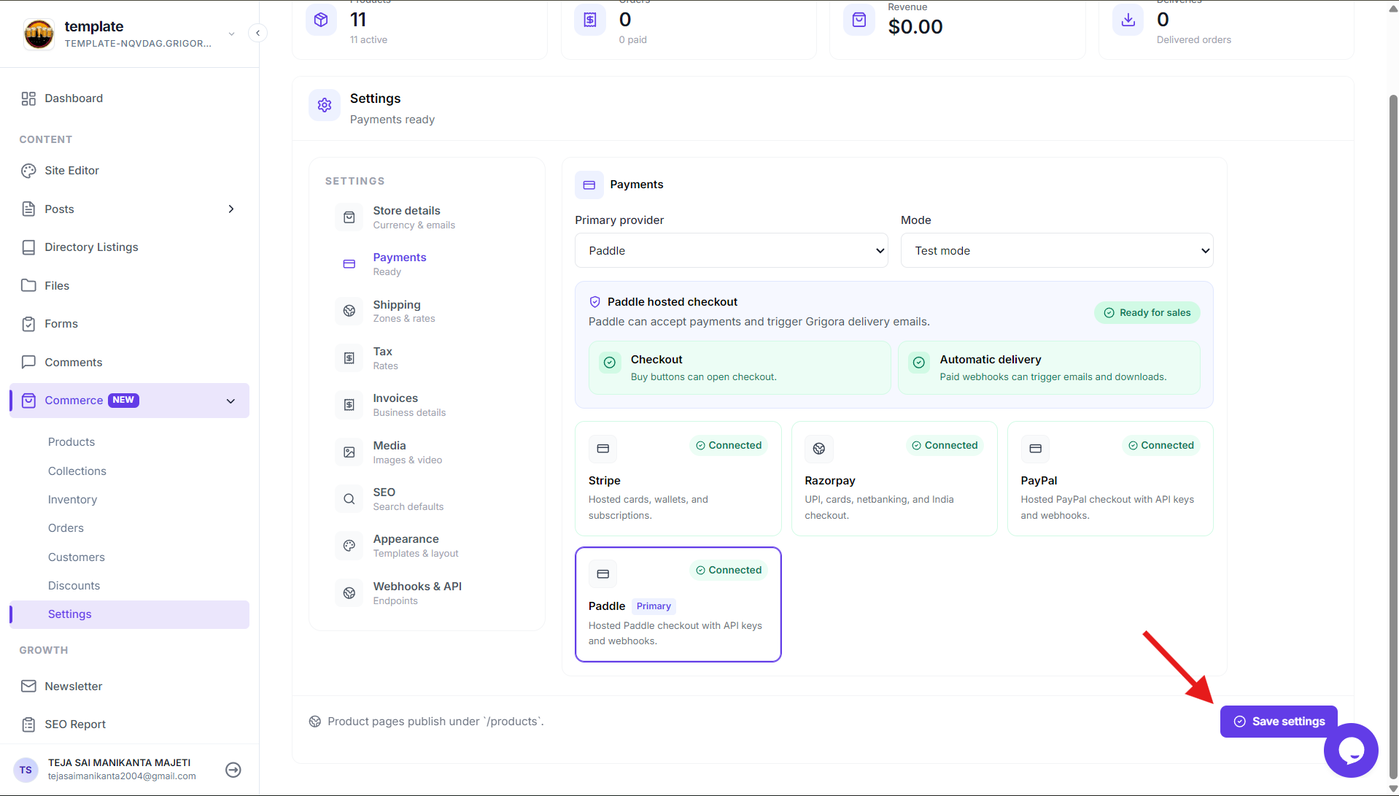
Connecting Paddle to Grigora Commerce allows your store to accept online payments through Paddle during checkout. Before connecting the gateway, make sure you have an active Paddle account and access to the required credentials. Paddle provides separate Sandbox and Live environments, so use the credentials that correspond to the environment you want to configure.
Open Payment Settings
Step 1: Open the payment setup
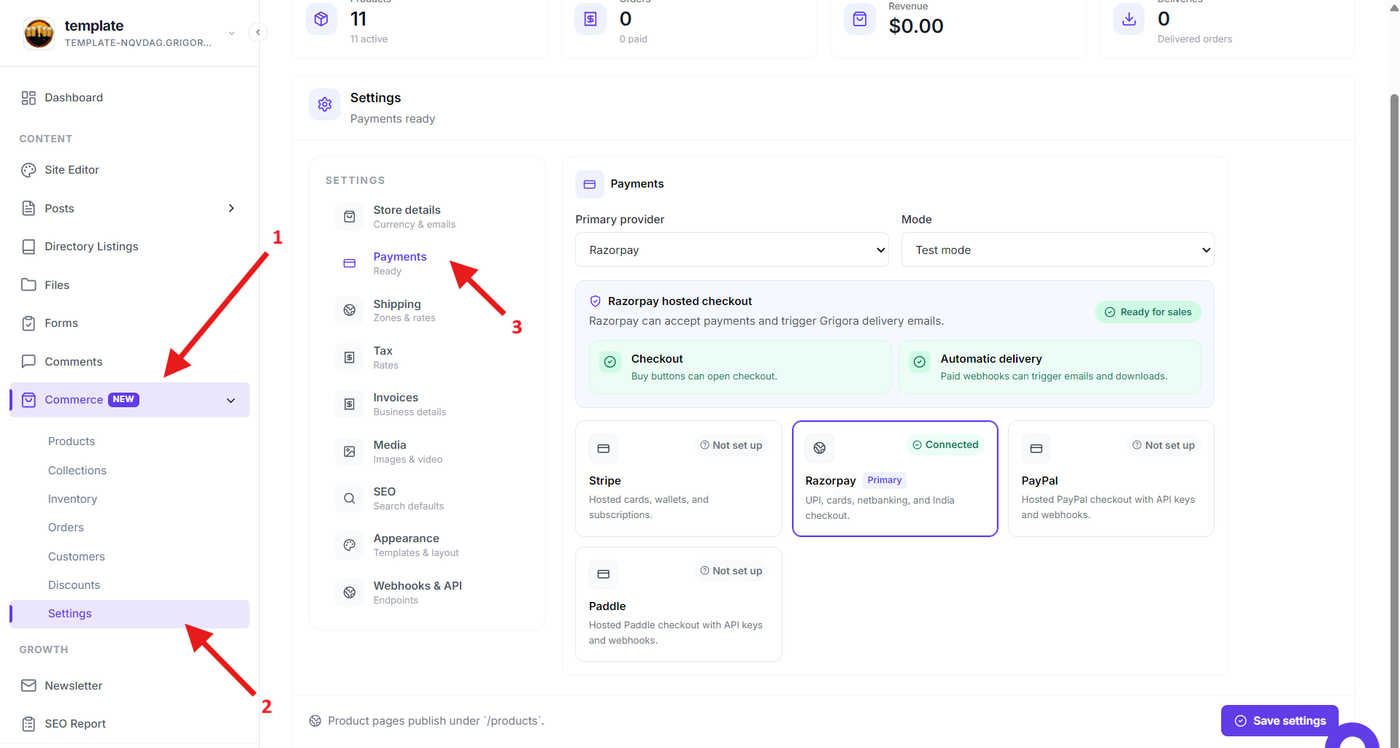
From the Grigora dashboard, expand Commerce and open the payment setup option. You can also use the Set up payments option shown in the payment gateway setup notification when payments have not yet been configured.
The payment setup screen allows you to connect a supported checkout provider for your store.
Select Paddle
Step 2: Select Paddle as the payment provider
From the available payment providers, select Paddle.
Paddle will be used as the payment gateway for processing customer payments made through your store's checkout.
Get Paddle API Credentials
Step 3: Generate or retrieve your Paddle API key
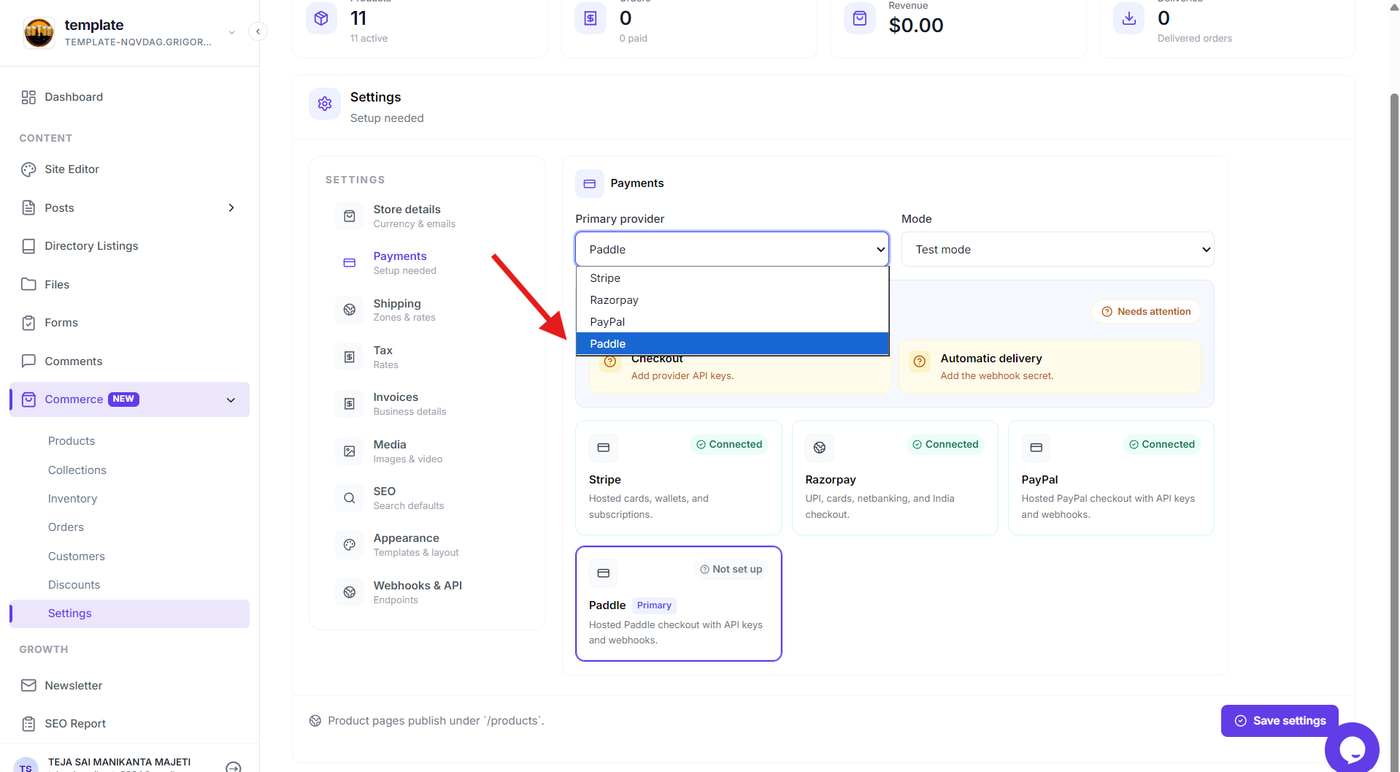
Log in to the Paddle Dashboard and navigate to Developer Tools → Authentication.
Open the API keys tab and create a new API key. Enter a name and configure the required permissions and expiry date before creating the key.
Copy the API key and store it securely. Paddle displays the API key only once after it is created. API keys are server-side credentials and should never be exposed publicly.
For testing, create and use a Sandbox API key. When your store is ready to accept real payments, use the corresponding Live credentials.
Approve Your Store Domain
Step 4: Add and verify your store domain
Before using Paddle Checkout on your live store, add your website domain to Paddle for approval.
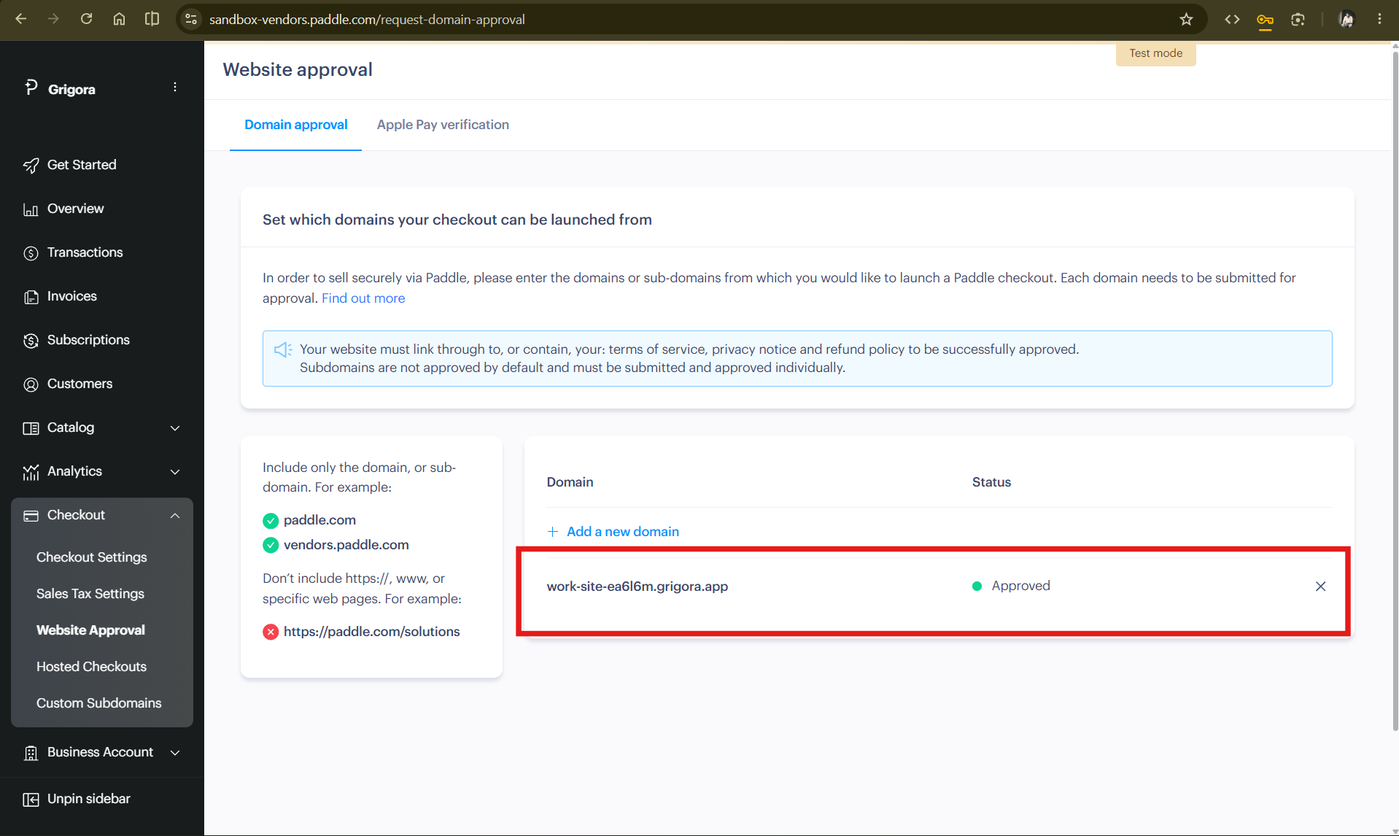
In the Paddle Dashboard, go to Checkout → Website approval and select Add a new domain. Enter the domain where your Grigora store will use Paddle Checkout and submit it for approval.
Paddle verifies that you own the domain and that the products you sell comply with its requirements. Sandbox domains are approved automatically, while live domains may require review before they can be used for checkout.
Wait until the domain shows an Approved status before continuing with the live payment setup.
Add Paddle Credentials to Grigora
Step 5: Enter the Paddle credentials and configure the webhook
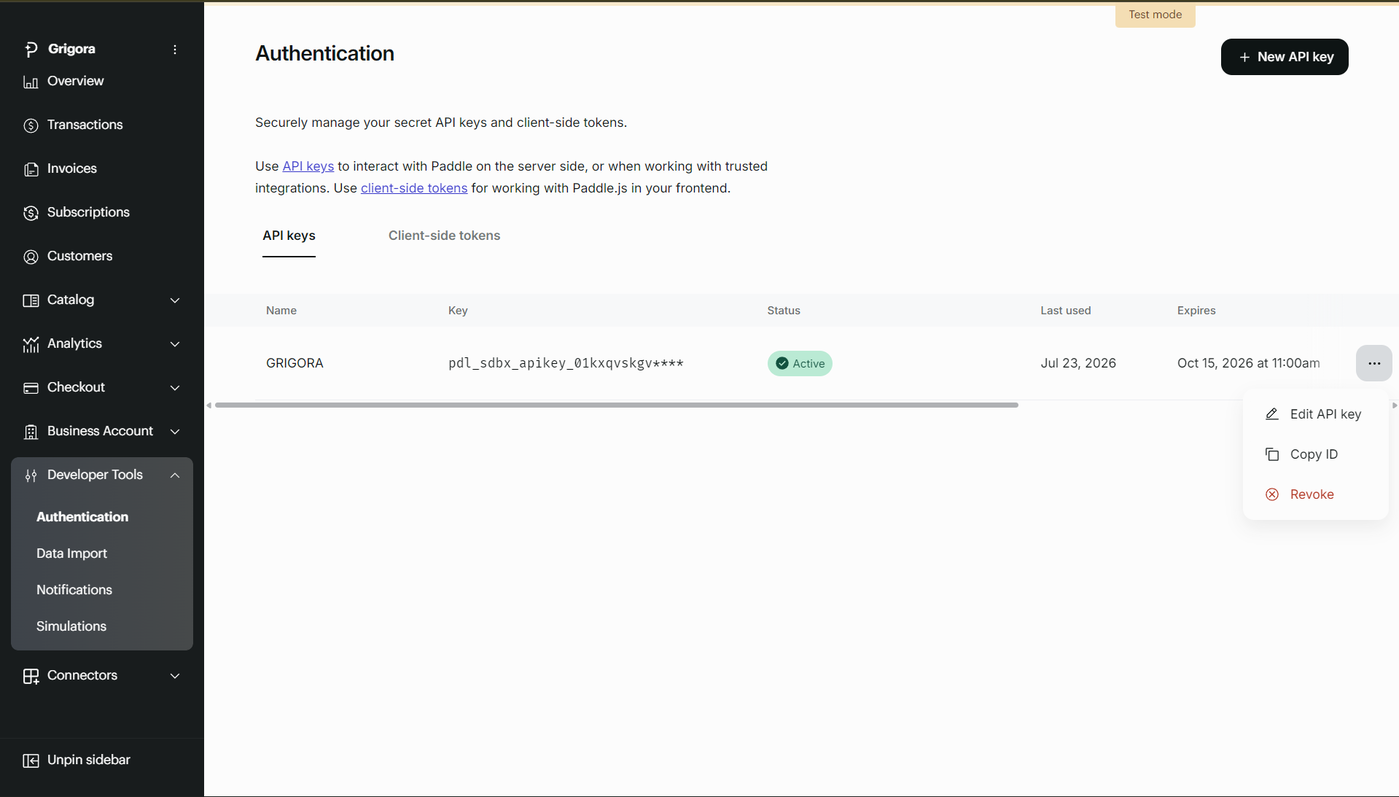
Return to Grigora and click Paddle from the available payment gateway options.
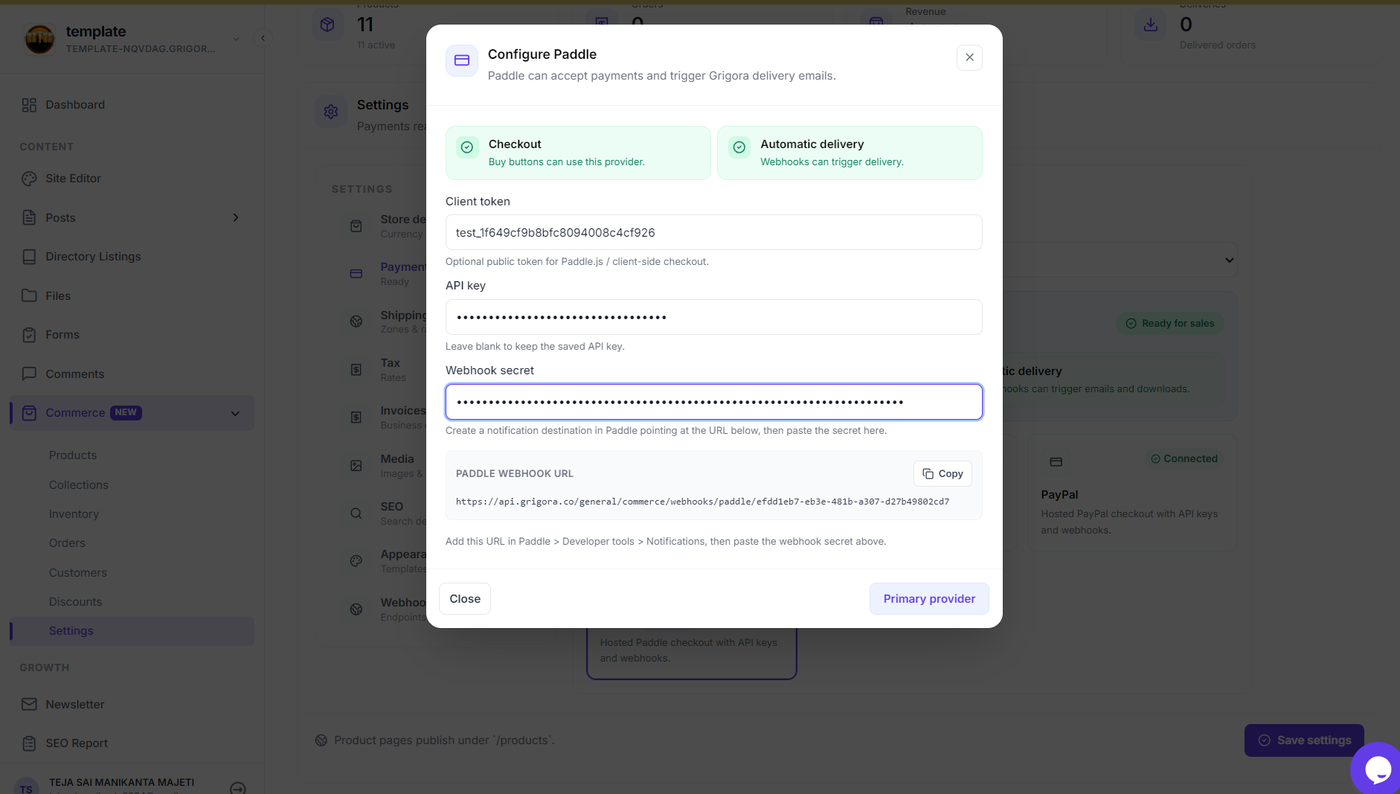
Enter the required Paddle credentials in their corresponding fields.
If Grigora provides a Webhook URL, copy the URL and open Developer Tools → Notifications in your Paddle Dashboard. Create a new notification destination, select URL, and paste the Grigora webhook URL.
Select the required events for the integration and save the notification destination. Paddle generates an endpoint secret key for the destination. Copy the secret key and enter it in the corresponding Webhook Secret field in Grigora, if provided.
Connect Paddle
Step 6: Configure and save the Paddle payment gateway
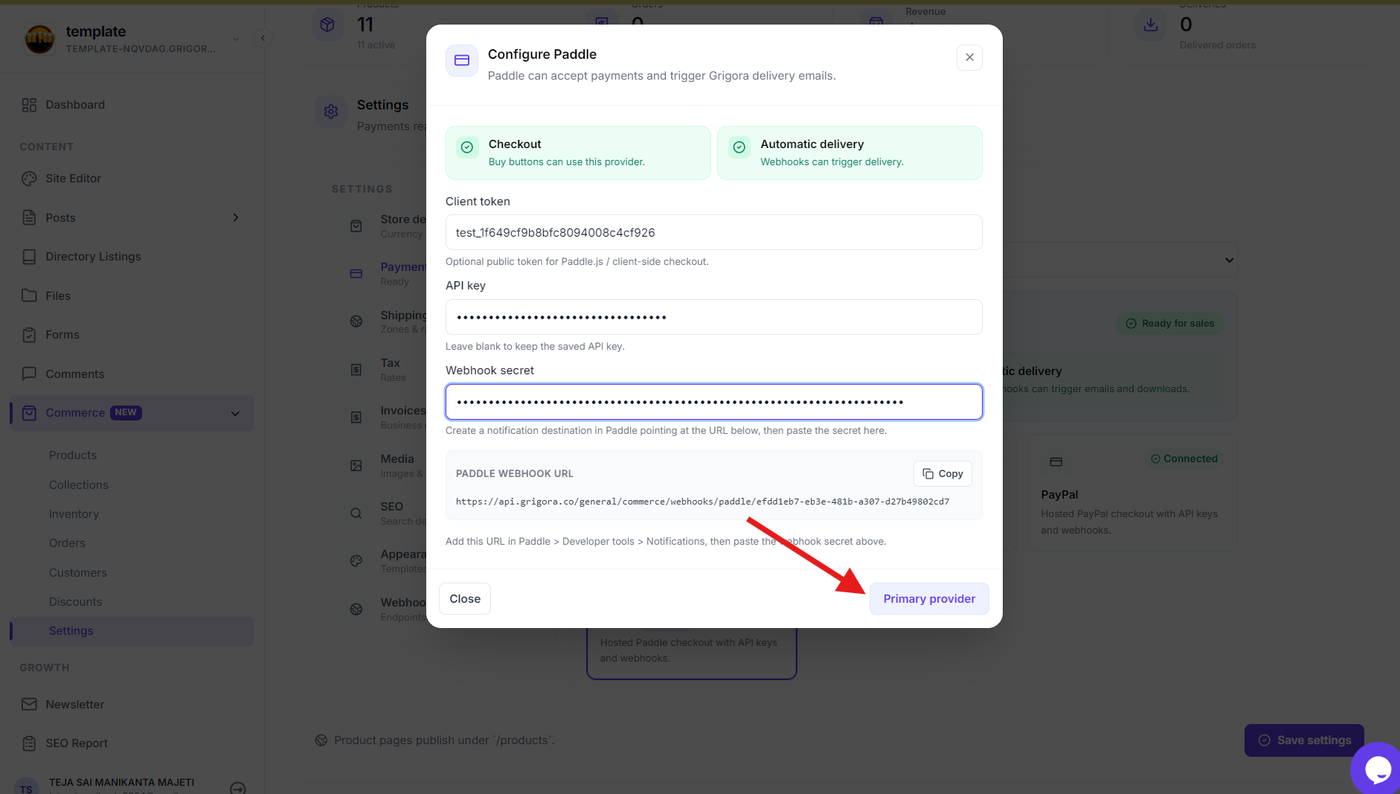
After entering the required Paddle credentials and webhook details, review the configuration.
Select the option to make Paddle the Primary provider and save the payment gateway configuration.
Verify the Connection
Step 7: Confirm that Paddle is connected
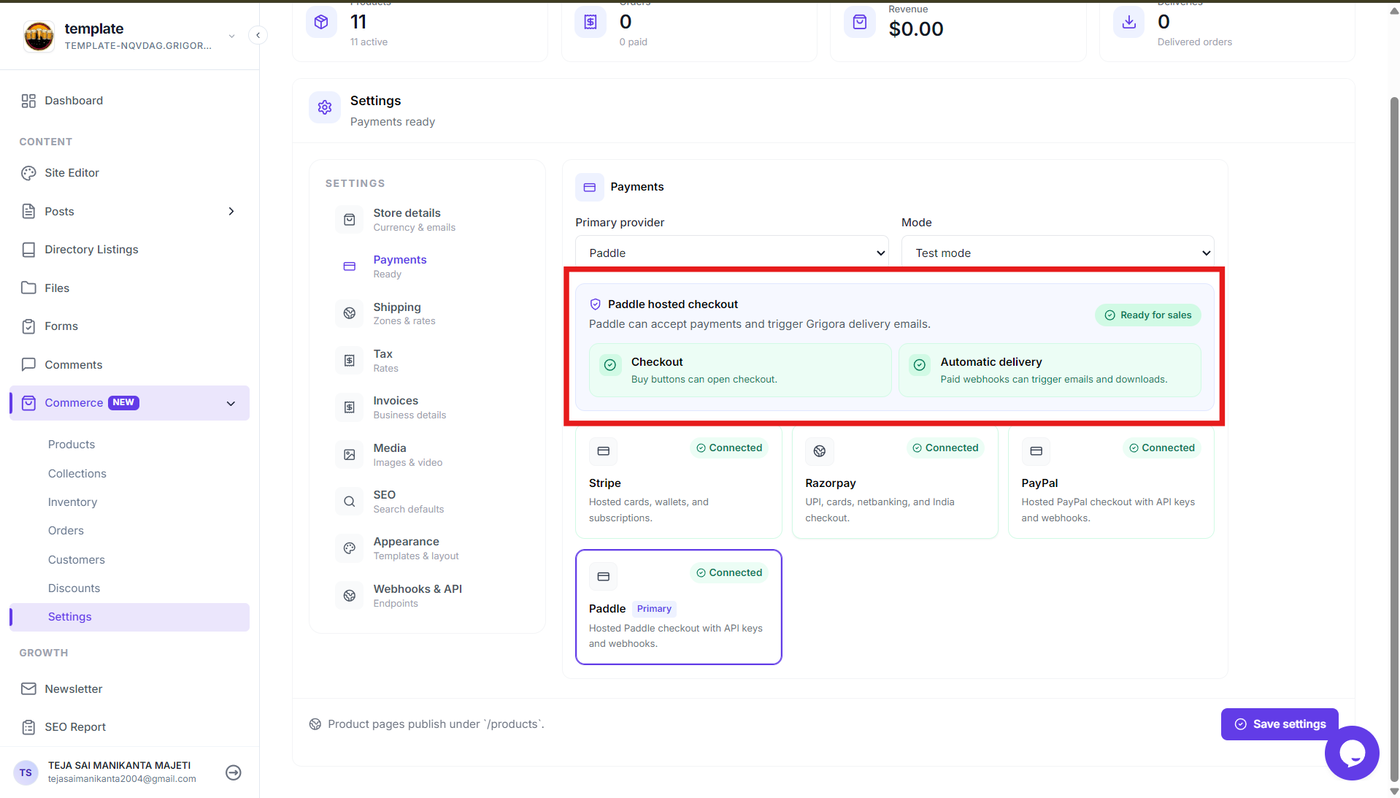
After configuring Paddle, verify that it is selected as the Primary provider on the Payments settings page.
If you are testing the integration, make sure the appropriate Sandbox mode is selected before continuing.
Save and Verify the Paddle Configuration
After selecting Paddle as the Primary provider, save the payment configuration from the Payments settings page.
Verify that Paddle is shown as the configured payment provider and that the previous payment setup notification is no longer displayed.
If you configured Paddle using Sandbox credentials, complete a test checkout to verify that the payment flow works correctly before switching to Live credentials.
Once testing is successful, replace the Sandbox credentials with the appropriate Live credentials and make sure your live store domain has been approved before accepting real payments. Paddle's live setup also requires a real, approved domain for the default payment link.