

Whether you need an offline backup of your subscriber database, want to import contacts into an external CRM or analytics tool, or wish to review subscriber engagement in a spreadsheet program like Microsoft Excel or Google Sheets, Grigora allows you to export your contacts directly into a standard CSV file.
When you trigger an export, Grigora respects whatever search queries and status filters you currently have active on your screen. You can download your entire audience or export targeted subsets with a single click.
This guide explains how to export your contacts, what file name format to expect, how to filter your audience before exporting, and the exact data structure included in the downloaded CSV file.
How to Export Contacts in Grigora
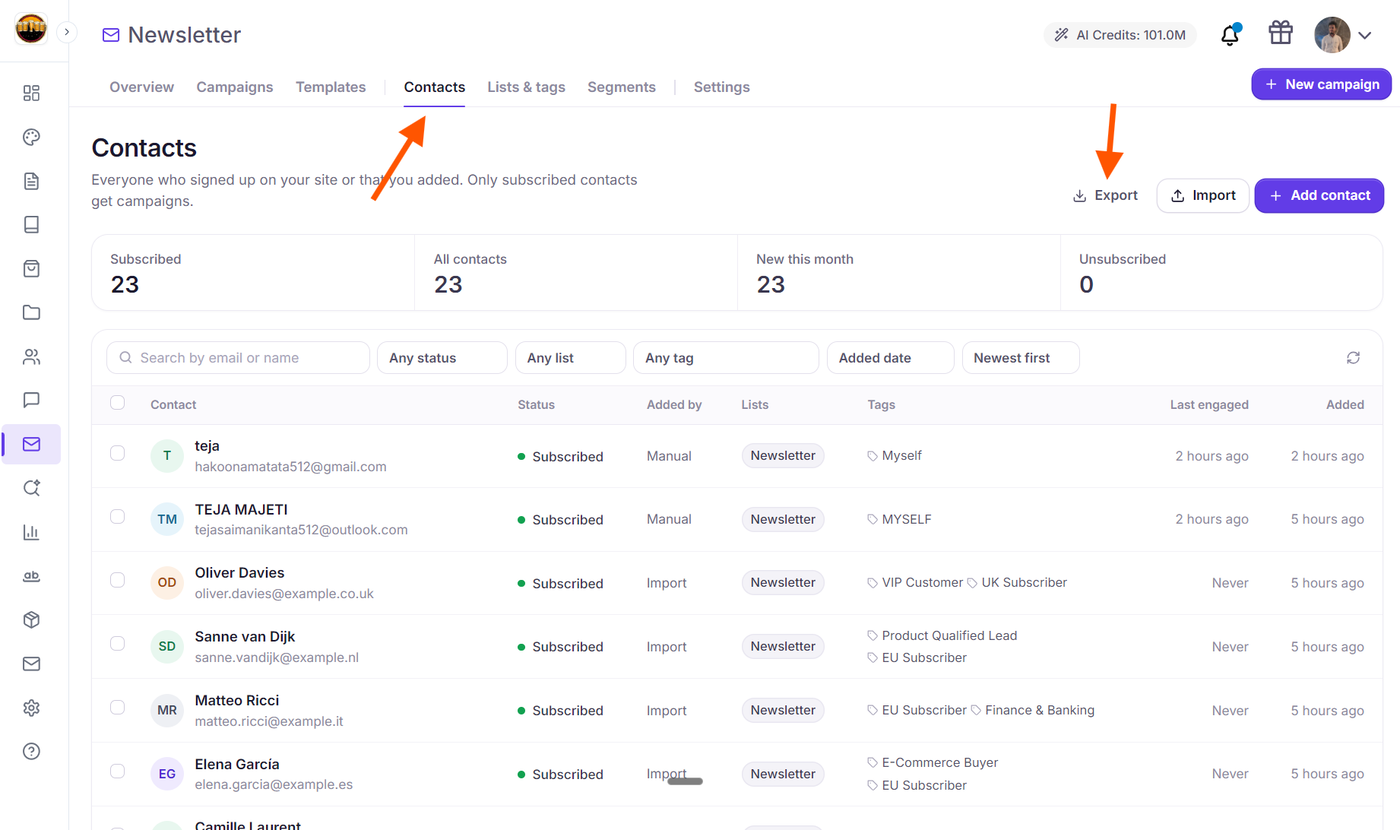
In your Grigora project dashboard, select Newsletter from the main navigation, then click the Contacts tab in the top navigation bar.
(Optional) Filter Your Audience: If you only want to export specific subscribers, use the filter toolbar or summary metric cards to narrow down your contacts (for example, choosing Subscribed from the status filter or selecting a specific list).
In the top-right header action bar (next to Import and + Add contact), click the Export button (labeled with a download icon).
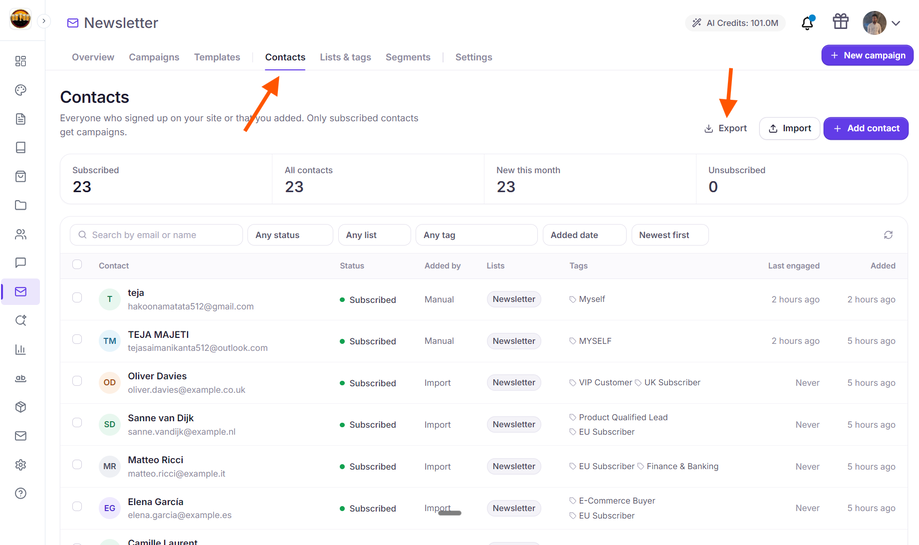
While the export file is generated, the Export button displays a brief loading spinner. Once complete, your browser will automatically prompt you with the download or save the file to your computer.
File Name Format: Grigora automatically names your downloaded file using the format
contacts-YYYY-MM-DD.csv(for example,contacts-2026-10-08.csv), stamped with the current date in ISO format. The file is saved as a standard comma-separated values file compatible with Excel, Apple Numbers, and Google Sheets.
What Data is Included in the CSV Export?
The exported CSV file contains a comprehensive export of all contact records matching your view. Standard contact attributes appear first, followed by separate dedicated columns for any custom fields defined in your project.
Column Header | Description | Example Value |
|---|---|---|
| The subscriber's primary email address. |
|
| The subscriber's first name. |
|
| The subscriber's last name. |
|
| The contact's phone number formatted with international country code (E.164). |
|
| The contact's geographic timezone identifier. |
|
| The subscriber's preferred language or locale code. |
|
| The subscriber's delivery status: |
|
| How the subscriber joined your audience (e.g., |
|
| Any tags assigned to the contact. Multiple tags are separated by a pipe character ( |
|
| IDs of subscriber lists where the contact has an active subscription. Multiple lists are separated by a pipe character ( |
|
| The UTC timestamp recording when the contact was added to your database. |
|
| Each custom attribute created under Newsletter > Settings > Custom fields (e.g., |
|
Note on Delimiters: If a subscriber has multiple tags or belongs to multiple lists, Grigora separates the values within that column using a pipe symbol (
|), preventing conflicts with standard comma-separated spreadsheet columns.
Exporting Filtered Views vs. Full Audience
The Export feature automatically adapts to the active filters on your Contacts page. This enables you to download targeted cohorts without exporting and manually filtering your entire database:
Active Subscribers Only: Select Subscribed from the status dropdown (or click the Subscribed summary card at the top) before clicking Export. This creates a list of only deliverable, opt-in contacts.
Specific List Members: Choose a publication from the Any list dropdown (for example, Weekly Digest or VIP Club) to download members enrolled in that list.
Tagged Segments: Select a label from the Any tag dropdown to export subscribers who have been assigned a specific tag.
Search Query Results: Type an email address, company name, or keyword into the Search by email or name bar. Clicking Export will download only the matching search results.
Unsubscribed or Cleaned Contacts: Filter by Unsubscribed or Cleaned to export contacts who opted out or bounced, making it easy to sync suppression lists with external ad platforms or third-party CRM tools.
Resetting Filters: Whenever active filters or search terms are applied, a Clear button appears next to the sort menus. Click Clear to instantly return to your full contact list before triggering an all-audience export.
Next Steps
How to Import Contacts into Grigora Using the CSV Import Wizard
How to Manage Contacts in Grigora: Understanding Contact Statuses & Lifecycles
How to Create and Manage Custom Contact Fields in Grigora
How to Build Targeted Audience Segments with Multi-Condition Rules (AND / OR Logic)