

Designing a high-converting newsletter doesn't require starting from scratch. Grigora offers a curated gallery of professionally designed email templates automatically customized to your project’s brand colors, typography, and logo.
This guide explains how to browse the template gallery, preview designs, and launch a new campaign from any template.
Accessing the Templates Gallery
From your Grigora project dashboard, click Newsletter in the left sidebar.
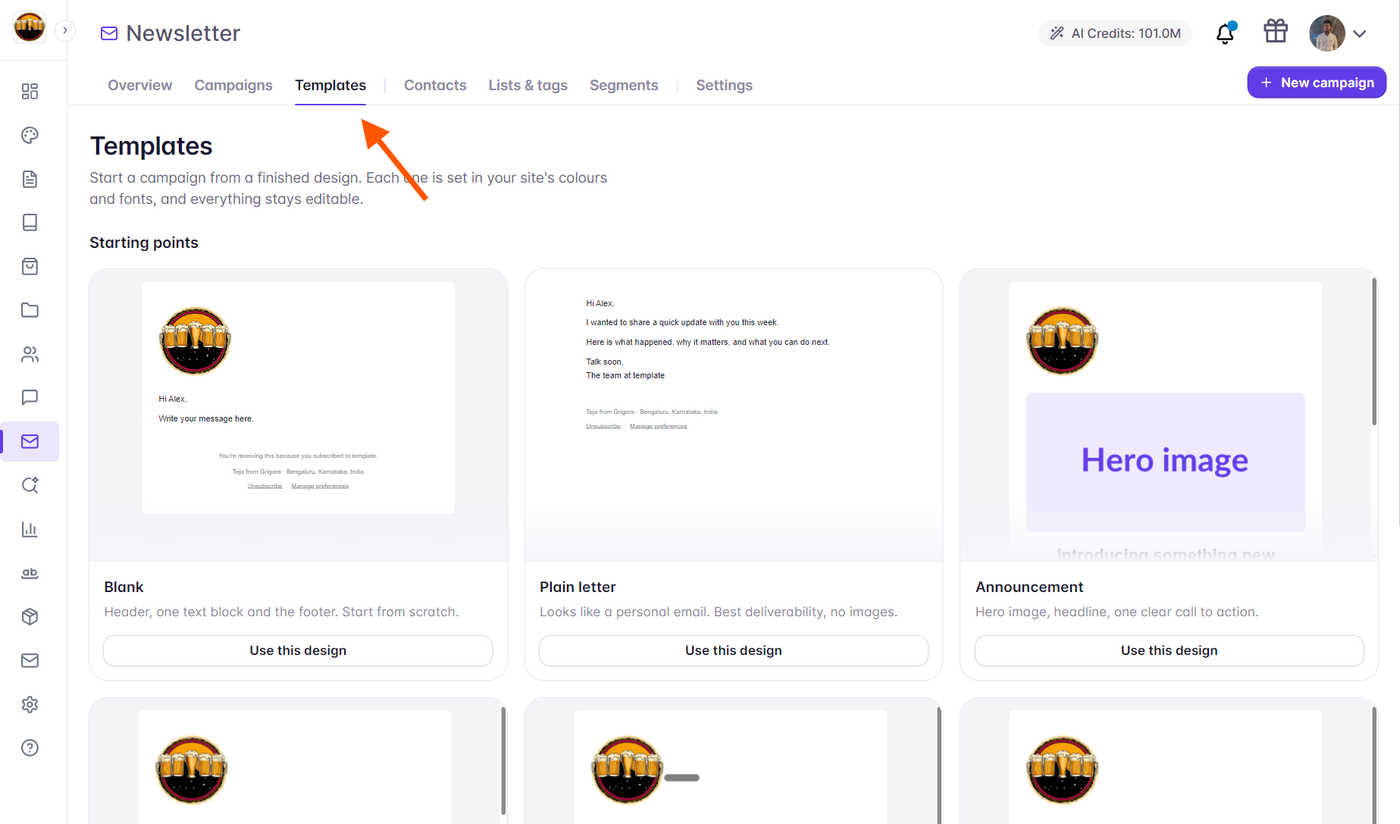
Select Templates from the newsletter navigation menu (or navigate directly to
/site/:projectID/newsletter/templates).The Templates gallery page displays two categories:
System Templates: Built-in starter layouts provided by Grigora, automatically styled with your website’s brand palette.
Saved Templates: Custom designs you have previously saved from the email composer.
Available System Template Types
Grigora provides ready-to-use layouts tailored for common email marketing goals:
Product Launch & Announcement: Bold hero banner, feature bullet grid, product spotlight, and high-contrast CTA buttons.
Content Digest / Weekly Roundup: Multi-column blog post cards, editorial letter from the founder, and curated reading links.
Seasonal Promotion / Flash Sale: Prominent coupon code callout, countdown banner, bestsellers grid, and urgency badges.
Welcome & Onboarding: Warm greeting, core product benefits, getting-started steps, and community social links.
Simple Letter / Plain Text Hybrid: Clean, minimalist editorial layout focused on long-form written storytelling.
Previewing Templates
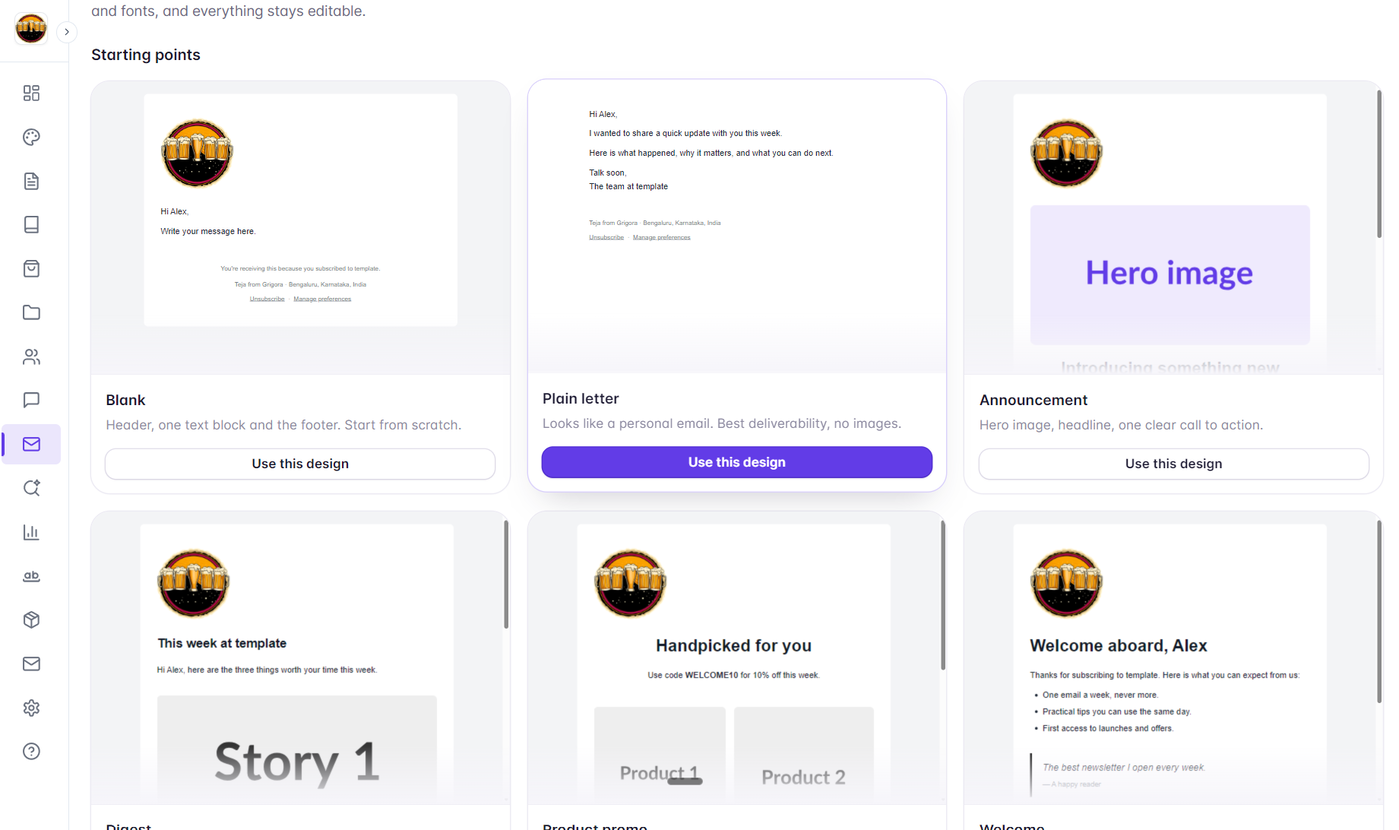
Grigora renders real-time visual previews of each template using the server email renderer:
Hover over any template card to view an expanded preview of its layout, structure, and sample copy.
The preview reflects your project’s primary accent colors and brand fonts, allowing you to see how the template looks with your visual identity before selection.
Creating a Campaign from a Template
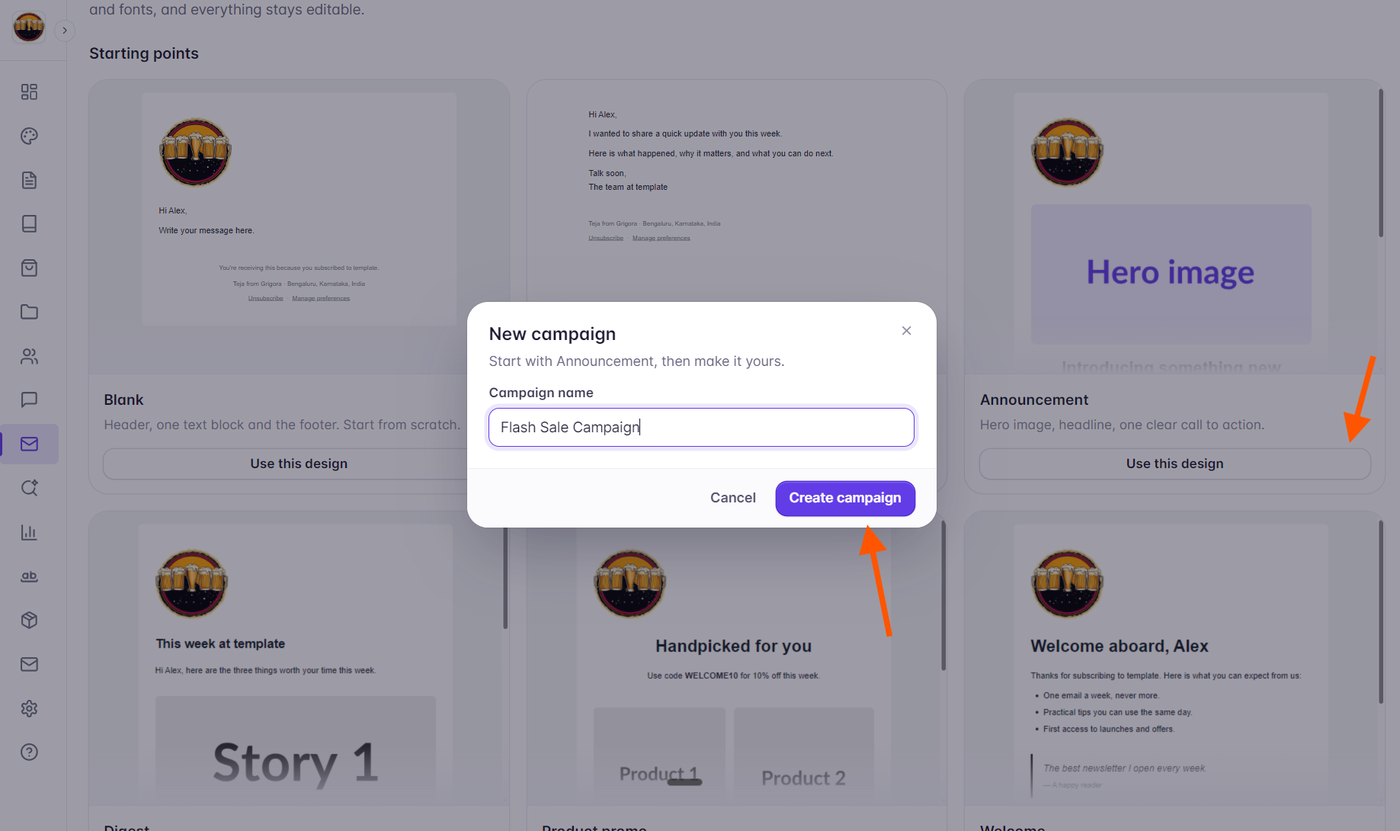
Hover over your chosen template and click Use template.
A modal will prompt you to enter a Campaign name (e.g., "October Product Drop").
Click Create campaign.
Grigora will clone the complete block tree of the template and immediately open the campaign in the 4-step Campaign Editor in
Draftstate.Replace placeholder text with your message, swap images, select your audience, and schedule your send.
Requirement: Creating campaigns from templates requires your project website to be published so that public assets and media can be resolved by email recipients.