Before sending a campaign to your subscribers, Grigora provides built-in quality checks to ensure your email looks great and all links work as intended. In the campaign builder, you can check for link errors, preview your design across devices, and send a test email to your inbox.
This guide explains how to use these quality checks in Grigora.
1. The Real-Time Error Checker (Fix Before Sending)
While editing your email in Step 3: Design, Grigora automatically checks your email blocks for issues as you work.
What Triggers an Error:
Missing or Invalid Links: Any Button, Image, Logo, Social icon, or text hyperlink that is missing a URL, has an unsupported format, or is missing
https://orhttp://.Missing Image Alt Text: Any Image block where the alt text description is empty.
Missing Image Source: Any Image or Logo block that does not have an uploaded image or valid image URL selected.
What Appears on Screen:
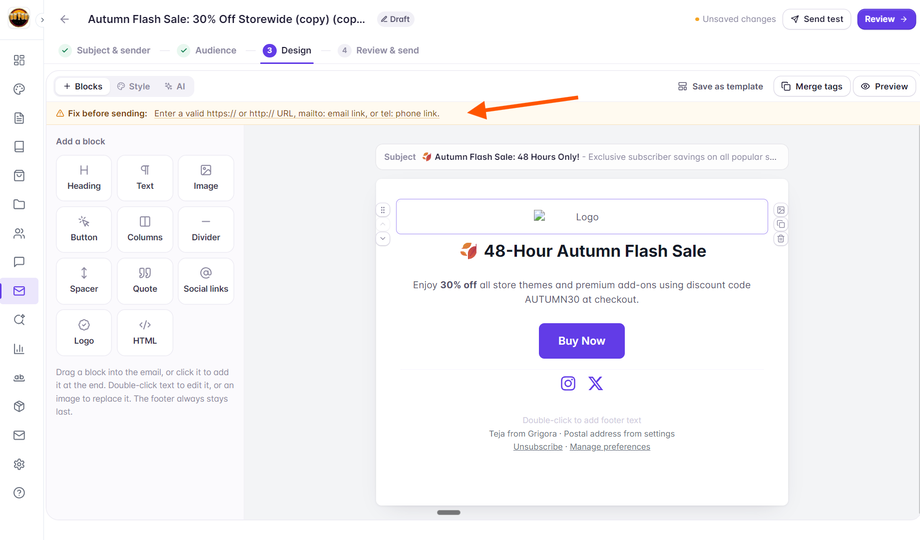
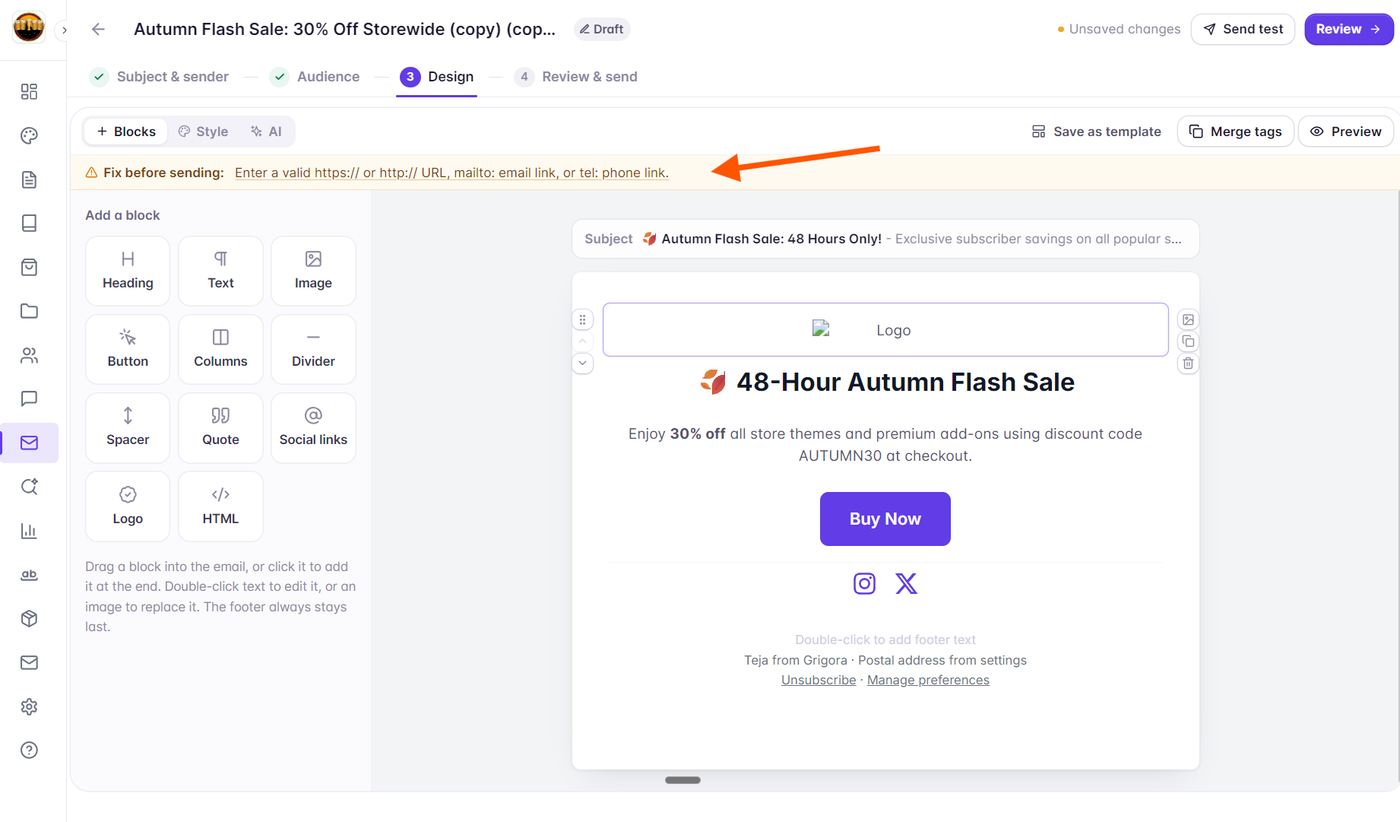
If any issue is detected, an amber warning banner immediately appears directly below the top composer toolbar:
⚠️ Fix before sending: Enter a valid https:// or http:// URL, mailto: email link, or tel: phone link.
Click to Jump: Clicking the underlined error message in the banner automatically scrolls to and selects that block on your canvas so you can edit its settings immediately in the side panel.
Sending Guard: If you try to save or click Review → while an error exists, an alert notification confirms: "Fix the invalid links in your email before saving." Grigora prevents advancing to the final send step until all highlighted errors are resolved.
2. Preview Your Email Across Devices
To see how your newsletter renders on different screens before sending:
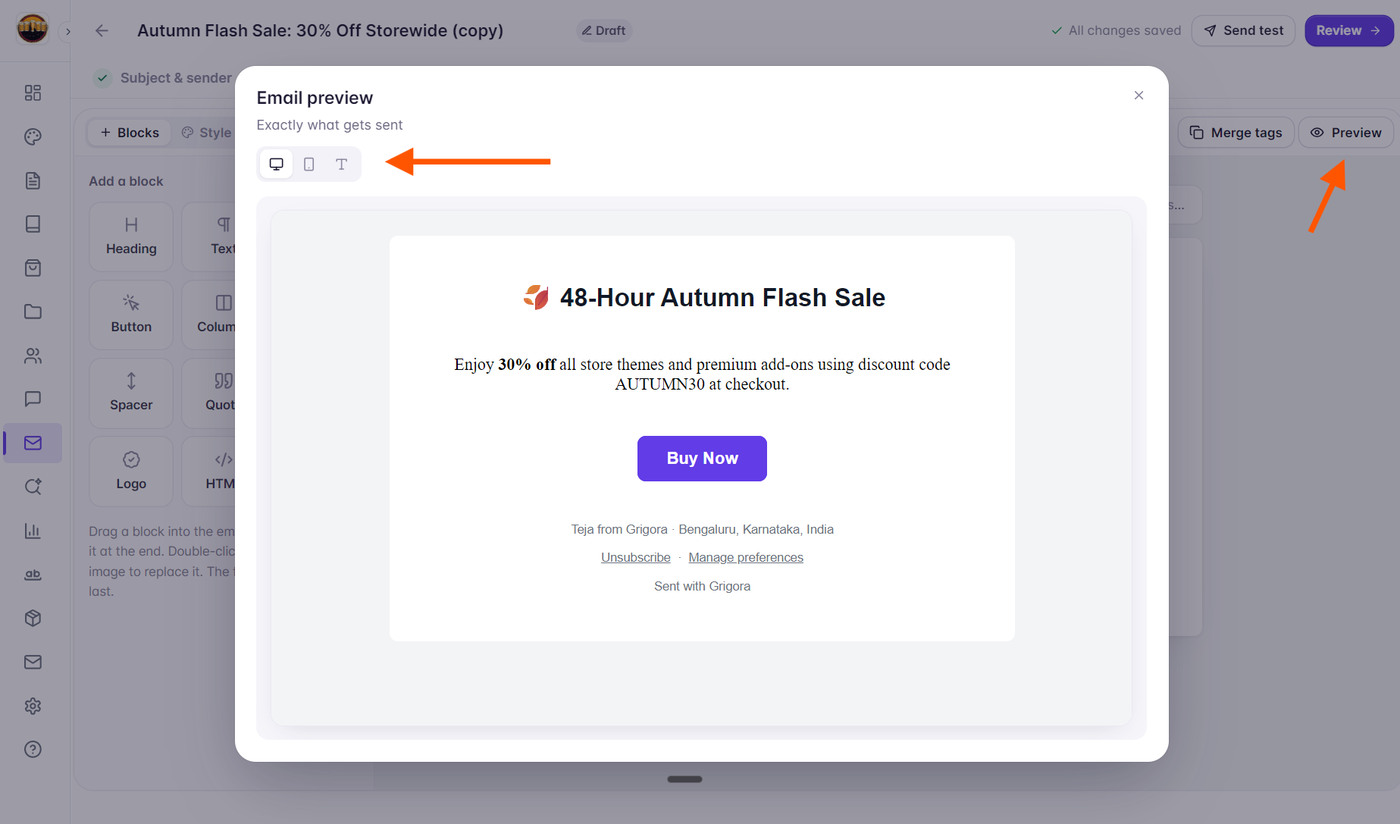
In Step 3: Design, click the Preview button in the toolbar above the email canvas (next to Merge tags).
The Email preview modal opens on your screen with the subtitle "Exactly what gets sent".
Use the three view tabs at the top of the modal to switch views:
Desktop (monitor icon): Shows the email layout in full desktop width.
Phone (smartphone icon): Displays the email inside a mobile device frame (375px) to show how columns stack vertically and buttons resize on smaller screens.
Plain text (text icon): Displays the plain-text version of your email.
Click the close button (
✕) to return to editing.
3. Send a Live Test Email
To see how your newsletter looks inside your actual email inbox (such as Gmail, Outlook, or Apple Mail):
In the top right header bar of the campaign builder, click the Send test button (next to Review →).
The Send a test email modal opens on your screen.
In the Send it to field, enter your email address. You can enter up to 5 email addresses separated by commas. Grigora remembers your previously entered test address automatically.
Click the Send test button.
A confirmation toast confirms: "Test queued." Grigora dispatches the test email immediately.