

Maintaining a cohesive brand look across every newsletter shouldn't require restyling every individual block. In Grigora, the Style tab in the email composer allows you to configure global styles that apply across the entire email document.
This guide explains how to configure canvas widths, backdrop colors, default typography, and link color schemes.
Accessing the Style Settings Tab
Open your campaign in the visual email composer (Step 3: Design).
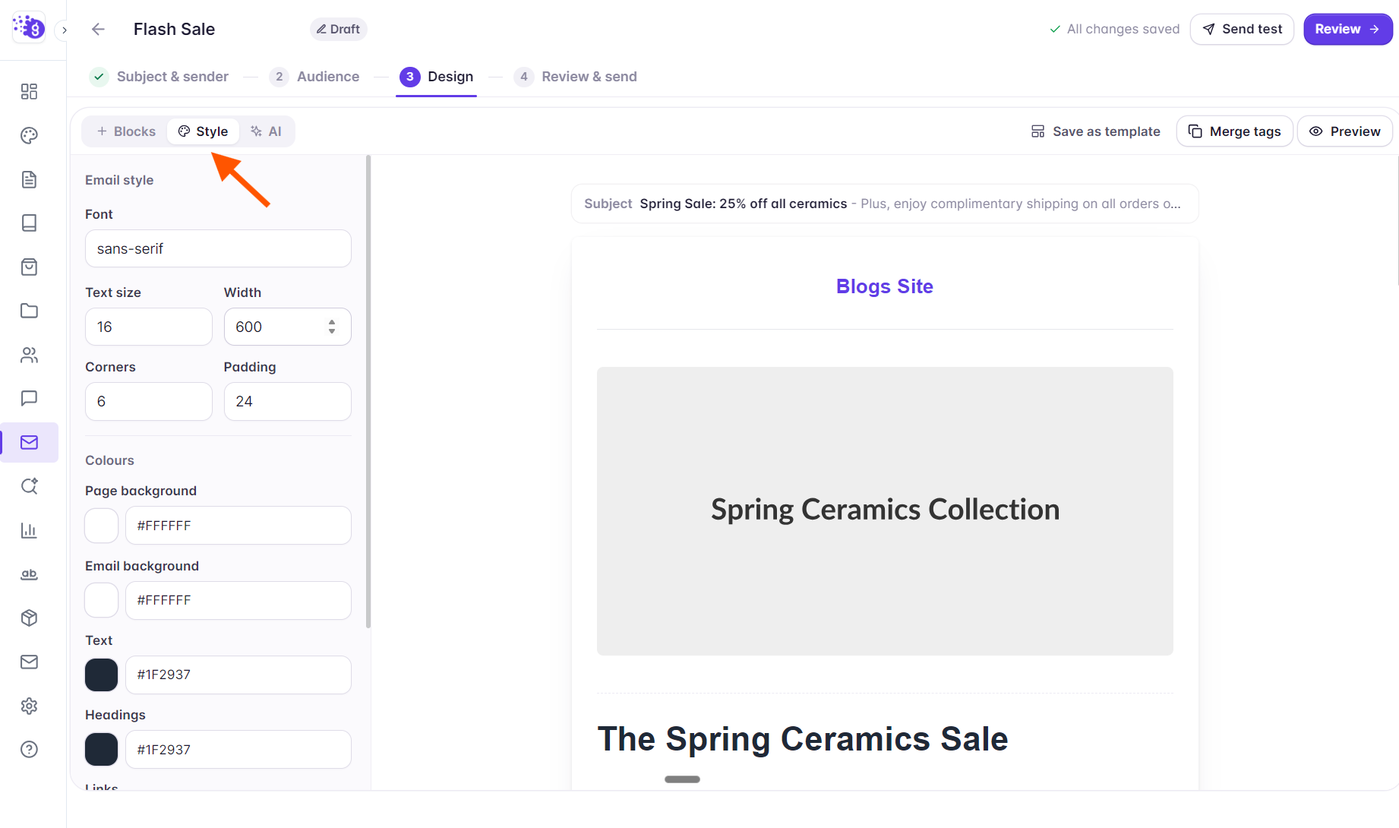
At the top of the left sidebar, click the Style tab (palette icon next to Blocks).
The Style settings panel will open in the left sidebar, displaying the global Email style and Colours controls.
Customizing Global Style Properties
The Style panel allows you to configure the core visual foundation of your newsletter:
Email Style Settings
Font: Select the default font family for your email (e.g., System Sans, Inter, Roboto, Helvetica / Arial, Georgia / Serif). This applies across all headings, body text, quotes, and buttons.
Text size: Adjust the baseline font size (between 12px and 22px).
Width: Configure the maximum content container width (between 480px and 800px; standard default is 600px for optimal readability across desktop clients).
Corners: Set border radius for the email container (0px to 40px) to give a sharp or rounded card aesthetic.
Padding: Adjust the outer padding around your email content (0px to 80px).
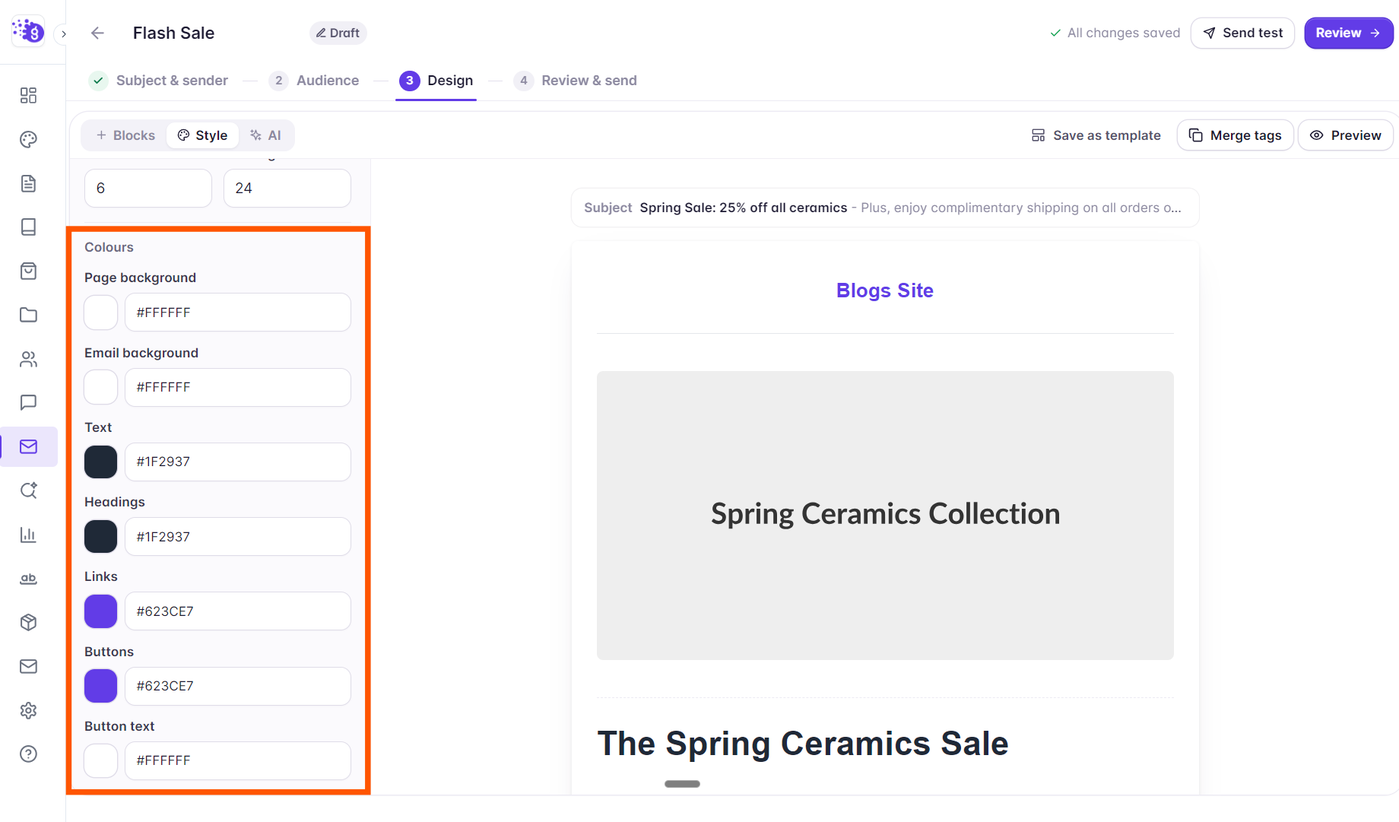
Colours
Configure brand colors across your entire email with hex codes or the color picker:
Page background: The outer canvas backdrop visible around your central email container in desktop mail clients.
Email background: The interior container background color behind your blocks and text.
Text: The default color for body text paragraphs.
Headings: The default color for heading blocks.
Links: The brand accent color applied to all hyperlinks.
Buttons: The default background fill color for call-to-action buttons.
Button text: The label color displayed inside buttons.
Previewing Style Changes Across Devices
Whenever you update global styles or colors, verify how your adjustments look on different screens:
Click the Preview button in the top toolbar to open the preview modal and toggle between Desktop, Phone, and Plain text views.
Use the Send test button in the top toolbar to dispatch a test email to your inbox and confirm how your styles appear in both Light and Dark mode mail clients.